This month's releases focus on the annotation-tool work that waited for summer to end, fewer trips into menus while you are actually working, and project settings that hold on to what you configured. Here's what's new in the platform.
Instant validation, and every camera at once
Four features sat on the next environment through July because they were too large to push mid-summer. They are all in the main app now.
Live checkers
Checkers are evaluated on every change, and the Validate button is gone. Validation happens as you work rather than when you remember to ask for it, which shortens the loop between making a mistake and seeing it.
Checkers can produce false positives, so warnings can be dismissed. A dismissed warning stays dismissed as more timestamps are added to it, and a filter brings dismissed warnings back into view when you want them. Where a project uses a checker that cannot be converted to the new format, the system falls back to the old evaluation and the Validate button returns.
Available in: Drawing tool · Docs
Every camera in one grid
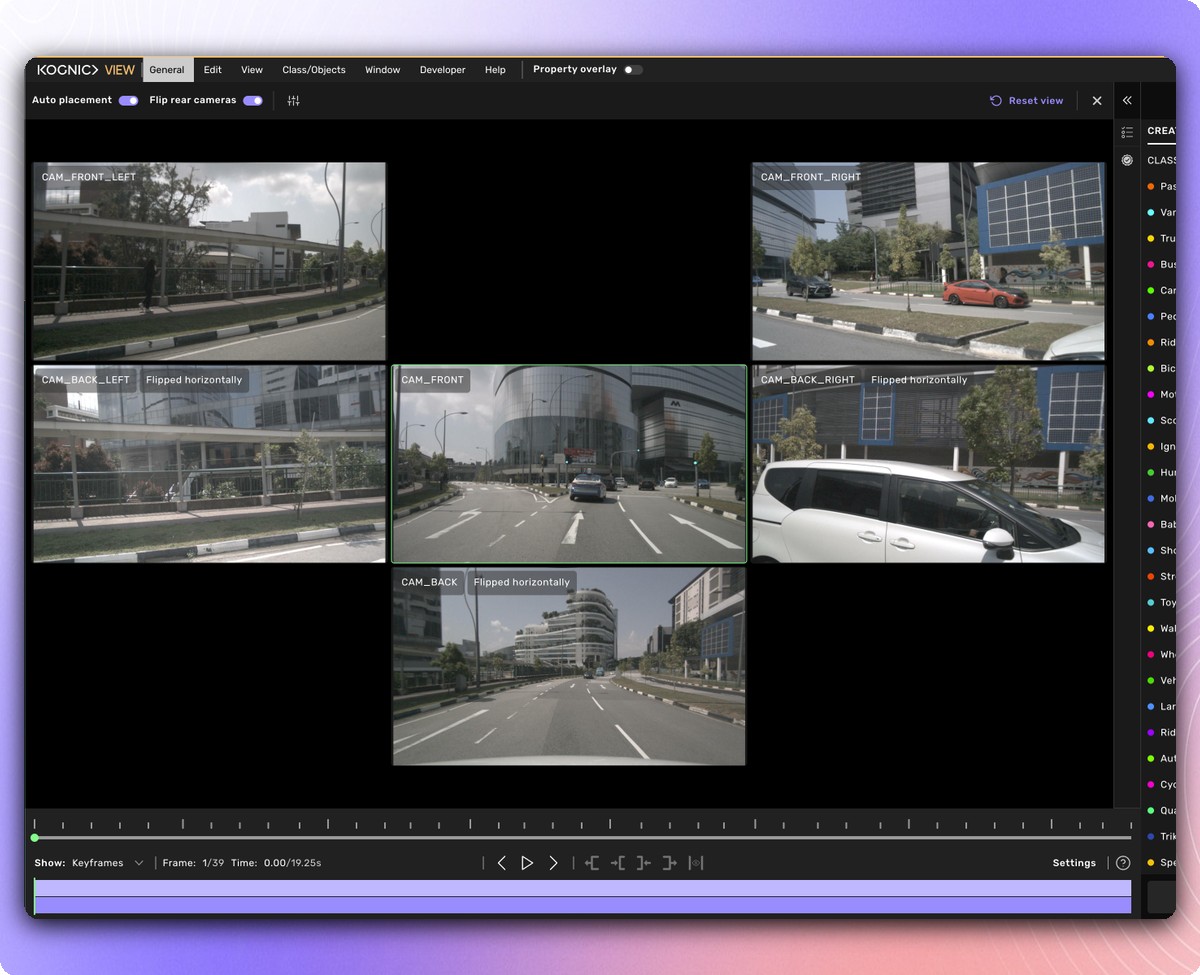
The camera drawer has an expand button that opens it into a grid of every 2D camera at once. The videobar, sidebar and topbar stay where they are, so the full surround view of the scene does not cost you task context. Close the grid to return to the normal single-camera drawer.
This matters most when setting scene properties on a task with several cameras. The alternatives were cycling through cameras one at a time, or accepting the reduced size each camera gets in the 3D split view.
Available in: Drawing tool · Docs
The 2D grid, reworked
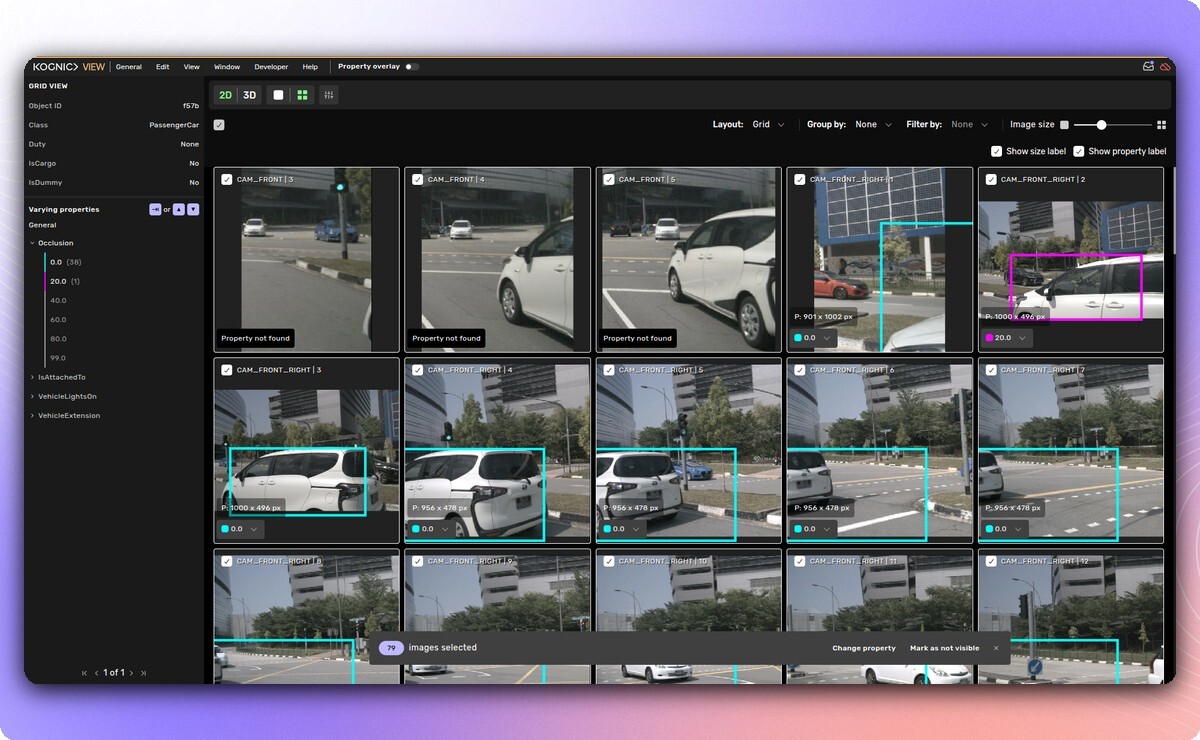
The 2D grid view has a toolbar along the top for moving to the 3D view and switching between views. Property values are editable on the thumbnail itself: where a property can be changed in 2D you get a dropdown instead of a read-only label. Changing a property across a multi-selection now has a button in the batch action bar, where it previously existed only as a keyboard shortcut and most people never found it.
A Group By control groups images by Source or by Frame. Group by frame to see one object across every camera in that frame; group by source to see it across every frame of one camera. Groups where the object is not visible anywhere are hidden, so you only get the cameras that have something to say. Both came out of occlusion work, where judging visibility means comparing cameras against each other rather than reading them one by one.
Available in: Drawing tool · 2D grid view · Docs
Fewer trips to the menu
Keyboard shortcuts for Pixelated and Histogram equalization
Both image adjustments can be bound to a key. Open the keybindings window, find "Toggle pixelated" and "Toggle histogram equalization" under View, and assign whatever you like. Once bound, the top menu shows the key next to each item.
The argument for it is in the usage. Over 90 days, Pixelated was triggered 410,620 times and Histogram equalization 69,878 times, and every single one of those was a trip into the View menu. At that volume it should be a keypress. Both ship unbound, so nothing changes until you set a key.
Available in: Drawing tool · Docs
Cuboid dimensions in the object cameras
Each object camera shows the size of the selected cuboid in metres, for the two dimensions visible in that view. The number of decimals follows the object label setting. Checking whether an object is roughly the right size no longer means opening its properties and coming back. Cuboids only, and the 2D grid view does not show dimensions.
Available in: Drawing tool
Hide objects by property value
The property overlay could isolate a value but never hide one, so any review where the interesting set was "everything except this" meant working around the filter instead of using it.
Now, hovering a value in an expanded property gives you a hide icon. Every object with that value disappears, including objects that have no value set for that property, while the rest of your selected classes stay visible. Several values can be hidden at once, and the result saves to a favorite filter.
Available in: Drawing tool · Docs
Plus: three smaller changes pulling the same direction. Camera orbit and pan can be swapped so left-click orbits, saved per user and applied in both Fly and Orbit control. In projects configured with a per-camera region of interest range, 3D objects beyond that range are no longer projected into that camera's image, and a checkbox turns the filtering off. And "Reset my changes" has moved out of the sidebar into the Edit menu, away from the Validate and Submit buttons it used to sit beside, where it was reached by reflex more often than by intent.
Projects that hold on to how they should run
Default request workflow settings carry to new batches
A project's default request workflow now stores per-phase configuration, not only which workflow to use. The selector in Project Settings, General carries a summary of the configured phases, for example "Review 1: 10% sample, Review 2: 25% sample", and Edit configuration opens a panel with one section per phase covering sampling method and rate, quality-based review selection, assignment rules and block review edits. A workflow containing the same phase twice lists them separately, so the two can be configured differently.
Until now the project default stored the workflow and nothing else, so every new batch rebuilt it from the built-in template. A Sampled Review always came back at 20 percent and quality-based selection was dropped silently. A project that wanted 10 percent had to correct every request by hand, every batch. Saving affects future batches only; requests that already exist are untouched.
Available in: Project Settings · General
Project category
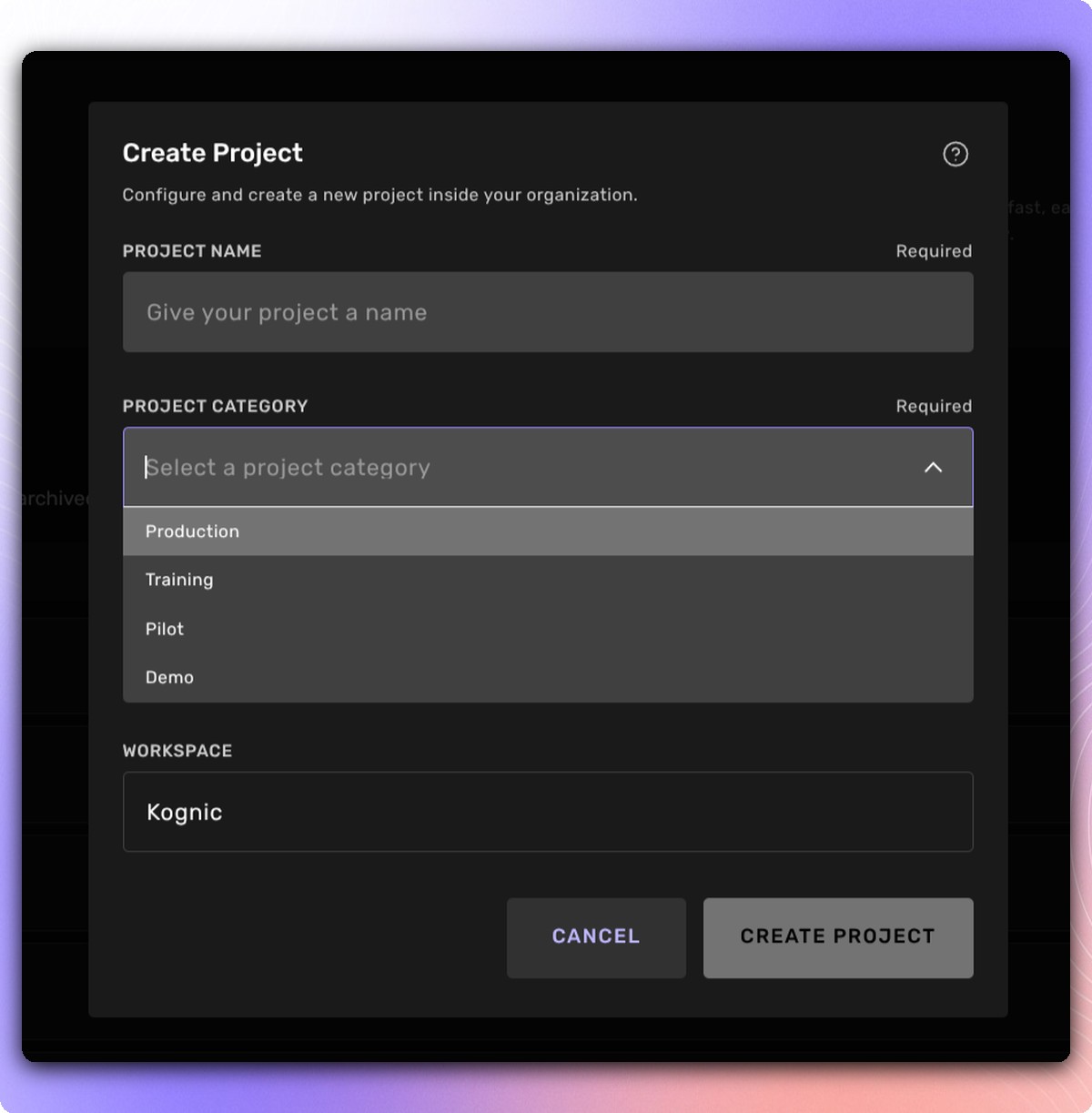
Projects can be labelled Production, Pilot, Training or Demo. The category is required when you create a project and can be changed later in Project settings, General. The Projects list has a Category column and the project header carries it as a chip.
Why a project exists has been living in parentheses in the project name, which nothing can filter on and which clutters client project pages. Note that category answers why a project exists, not where it is in its lifecycle; that is a separate thing in progress. Existing projects show as Not set until someone gives them one.
Available in: Project Management
Studies: pick who to coach from the metrics
The user breakdown table on Metrics, Productivity is selectable, and the batch bar offers Create study with the people you ticked already added as members. A Training sessions column shows how many coaching studies someone has been part of, with a booked but not-yet-started round shown after the count as "2 (+1)". The coach dropdown is ordered by Annotate Speed, fastest first, each option labelled with the speed it was ranked on. The studies list gained Type and Coach columns with a filter bar.
Choosing who to coach is a judgement about speed and about who has been coached recently. Both numbers already lived on the Productivity tab, but studies could only be created from the Study tab, where members were picked by name with no metrics in front of you. The judgement was made on one screen and carried to another from memory, and the same people kept getting picked because nothing showed who had been through it already.
New studies now default to two weeks rather than one and require at least one member.
Available in: Project Management · Study and Metrics · Docs
Plus: favorite projects are no longer a separate tab. They sit as a section directly above All projects in the reworked list, so you star and find projects in the same place, and sorting is remembered between visits. Delivery metrics now carry frame counts for projects whose deliveries are measured in frames, showing the total and the last two calendar weeks.
Tighter geometry going in and coming out
Better motion compensation on scene creation
Point cloud motion compensation now interpolates IMU data points. Scenes with sparse IMU data used to smear the points of moving objects, and that smearing is what pushed some data through external motion compensation before upload. Every motion-compensated scene created since 24 August benefits from it.
The effect downstream is tighter boxes, though it is only really visible in the cases that were badly affected to begin with.
Available in: Scene creation
Export cuboids at every camera's shutter time
A new annotation instruction setting, "Always export at image timestamps", projects cuboids to each camera's shutter time even when the object is not visible in that camera. It applies to multi-sensor projects, where cuboids are annotated in one sensor and the export also carries where the object was when other sensors saw it.
Available in: Annotation instructions · Docs
Plus: number properties can carry minimum and maximum values that limit what can be entered in the drawing tool, and class group items can carry instance limits. Both are configured in annotation instructions.
Questions? Reach out to your account team or contact us at support@kognic.com.