This month's releases focus on whole lidar sequences on screen at once, feedback that points at the exact node, class or frame, and projects you can run without waiting on us. Here's what's new in the platform.
The whole sequence, without the sliders
Open an aggregated lidar scene this month and the first thing you'll notice is what's missing: the two sliders that used to decide how much of it you could see.
Aggregated point clouds, all frames at once
Every frame of an aggregated scene now renders in one point cloud, for every user. The spacing and number-of-frames sliders were there for computers that couldn't handle the full aggregate, and they aren't needed any more.
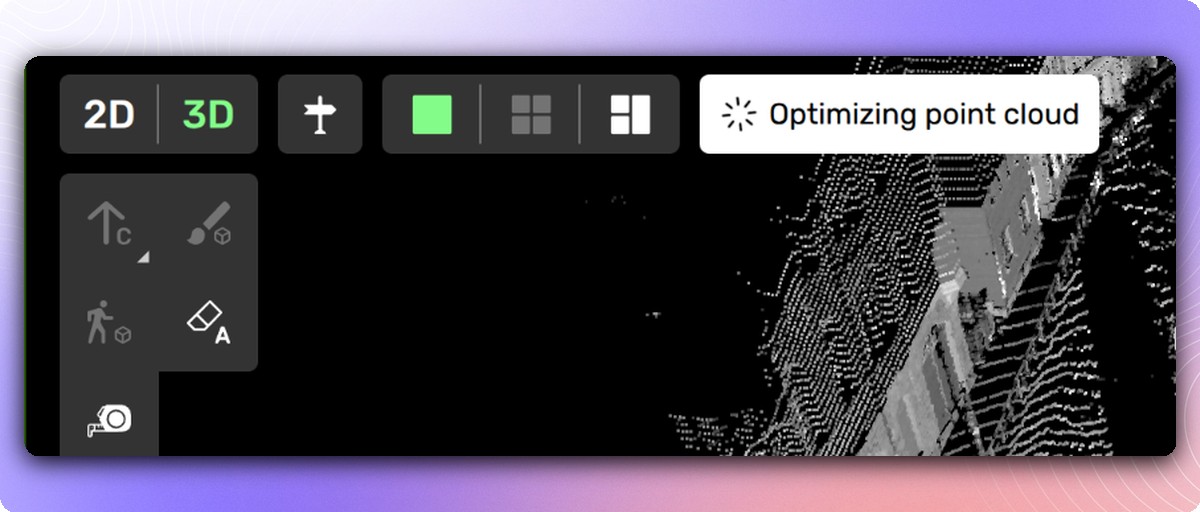
The first time a scene finishes loading, an "Optimizing point cloud" spinner appears in the top left corner. There's nothing for you to do. Once it's gone, the view moves more smoothly.
Available in: Drawing tool
Follow the ego vehicle
Jump to a frame in an aggregated scene, say from a scene property, and the ego vehicle used to end up off screen, so you had to fly back to find it. Turn on Follow ego vehicle in the 3D camera mode menu and the camera keeps the same offset to the ego vehicle as you step through the sequence. It's off by default.
Available in: Drawing tool · Docs
Orthographic 3D camera
Is that lane line straight, and does it run parallel to the one beside it? Perspective makes that hard to judge. The free-form 3D camera, the one you rotate freely around the point cloud, can now switch to an orthographic projection under View, 3D camera projection. With the distortion gone, you can see the answer at a glance.
Available in: Drawing tool · Docs
Feedback that points at the exact thing
Review feedback often reads like directions: the third node after the merge, the class that should have been road. This month's releases let the feedback point at the thing itself.
Numbered nodes and automatic pins on 3D lines and lanes
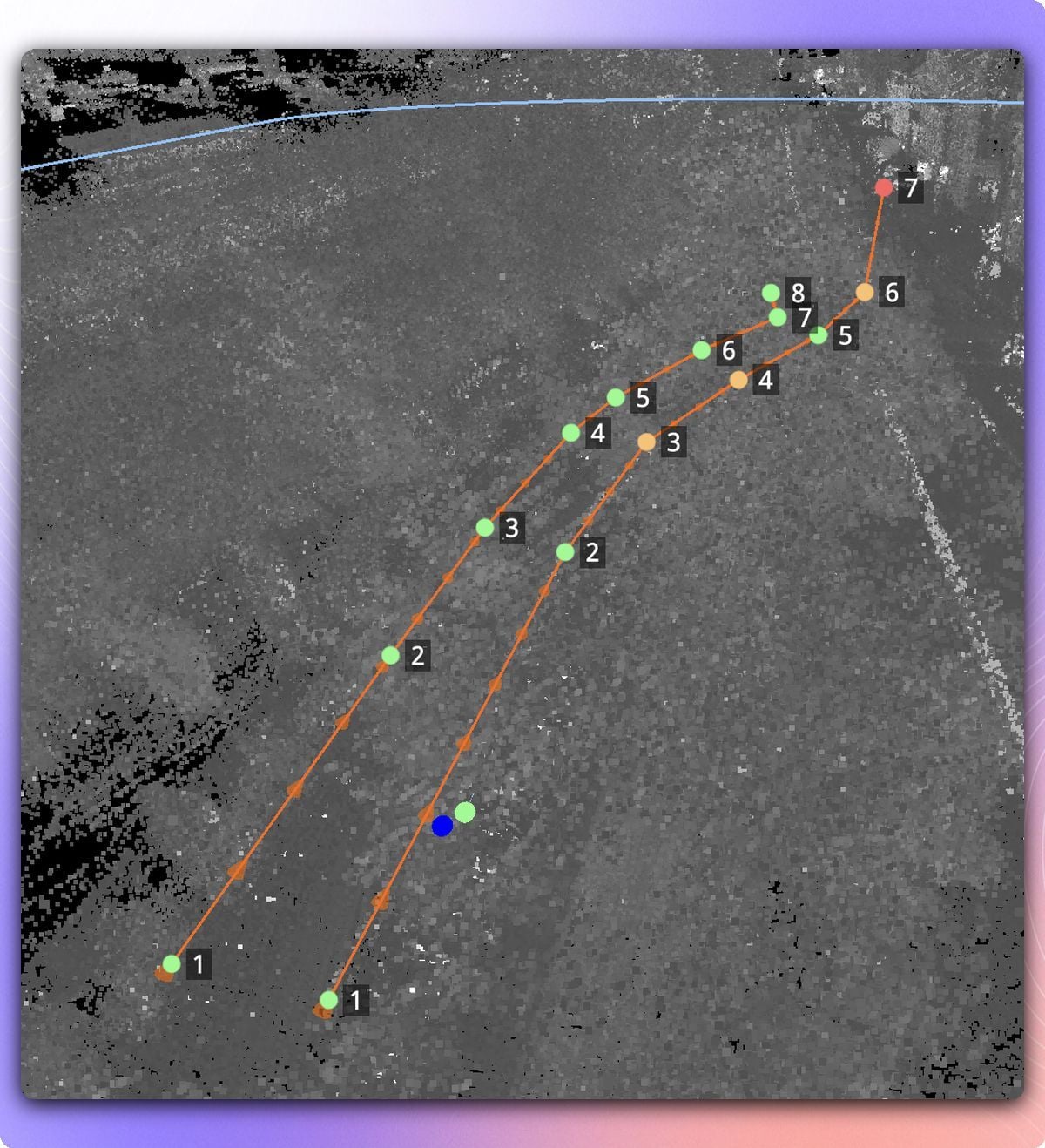
Turn on View, Show node indices and every node on a 3D line or lane gets a number, starting at 1, in the main view and in the picture-in-picture.
Feedback on a line or lane now drops a pin as well: where you clicked on the shape, or on the node you had selected when you opened the form. The annotator clicks Go to pin on the feedback card and lands on that exact spot.
Available in: Drawing tool, 3D line and lane tasks in lidar · Docs
Class and pin feedback in 3D semantic segmentation
When you review 3D semantic segmentation, one click in the point cloud now selects the class and pins that point, from the Add feedback form or from quick feedback. Until now classes couldn't be selected at all, so the class had to be spelled out in the comment. With a class and a pin together you also get the object error types, plus any error type that needs both.
Available in: Drawing tool, 3D semantic segmentation · Docs
Images on feedback
Some corrections are easier to show than to describe. Reviewers can attach images to individual feedback items, from the file picker or by pasting straight from the clipboard into the feedback dialog. Annotators see them in the task, and so does anyone opening a view link.
Available in: Drawing tool · Docs
Seeing how a scene fits together
Scene event markers on the video bar
One miscalibrated frame in a long sequence used to be hard to flag and harder to find again. Projects can now mark a scene property value as an event. Every frame with that value gets a red marker on the video bar: hover it to see the value, click it to jump there. While you're on one of those frames, a red chip with the value sits at the top of the view.
It's set up in annotation instructions, with two new settings on boolean and multiple-choice scene properties. Prevent propagation keeps a value on the frame where it was set, and Highlight value picks which value gets the marker.
Available in: Drawing tool · Annotation instructions · Docs
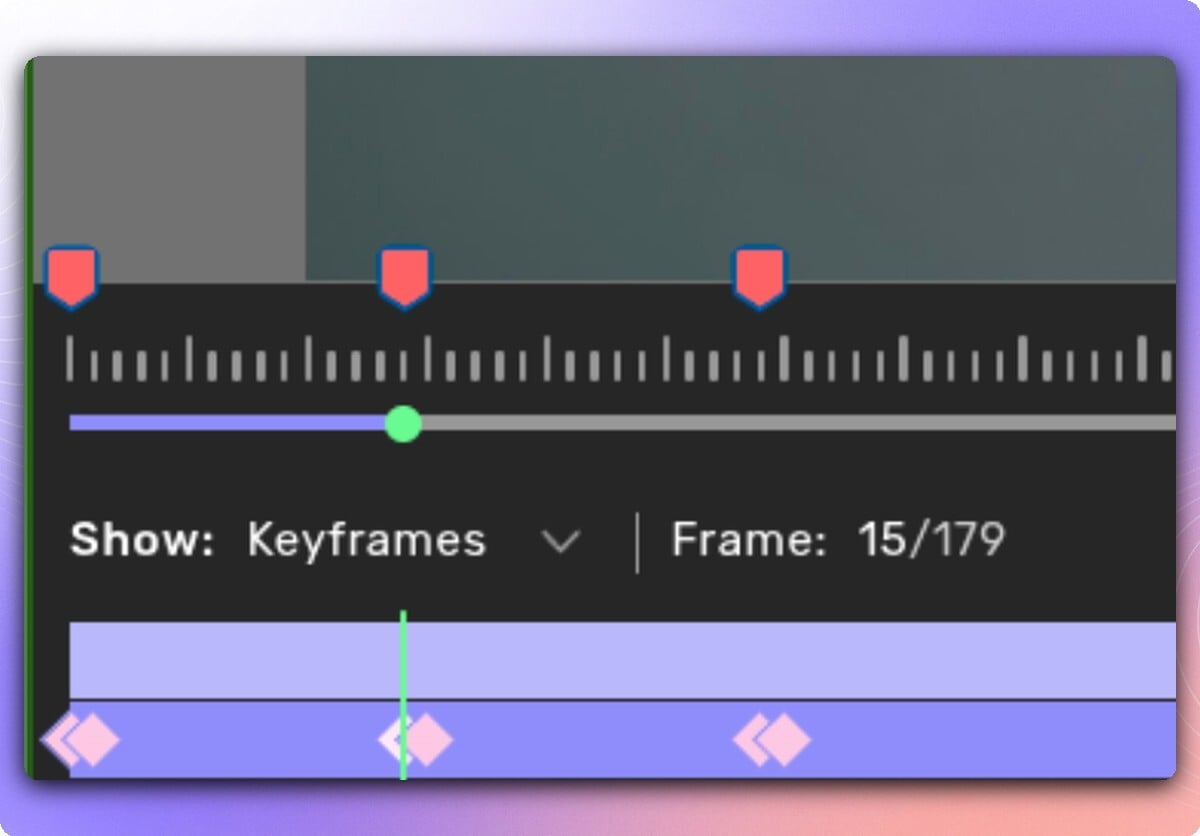
Scene properties across the whole sequence
Reviewing scene properties no longer means stepping through a sequence frame by frame. Select Scene properties in the object list, set the video bar to Property values, and you see every value and every change along the whole timeline.
Available in: Drawing tool · Docs
Collections and links you can see
When one object is built from several shapes, you can now see which shapes belong together. Hover a shape in the property overlay and the popup leads with its collection. Turn on Show collection members and dashed lines connect the members of every collection in view, with the rest of the scene fading while you hover one. Object link highlighting now fades the rest of the scene in the same way.
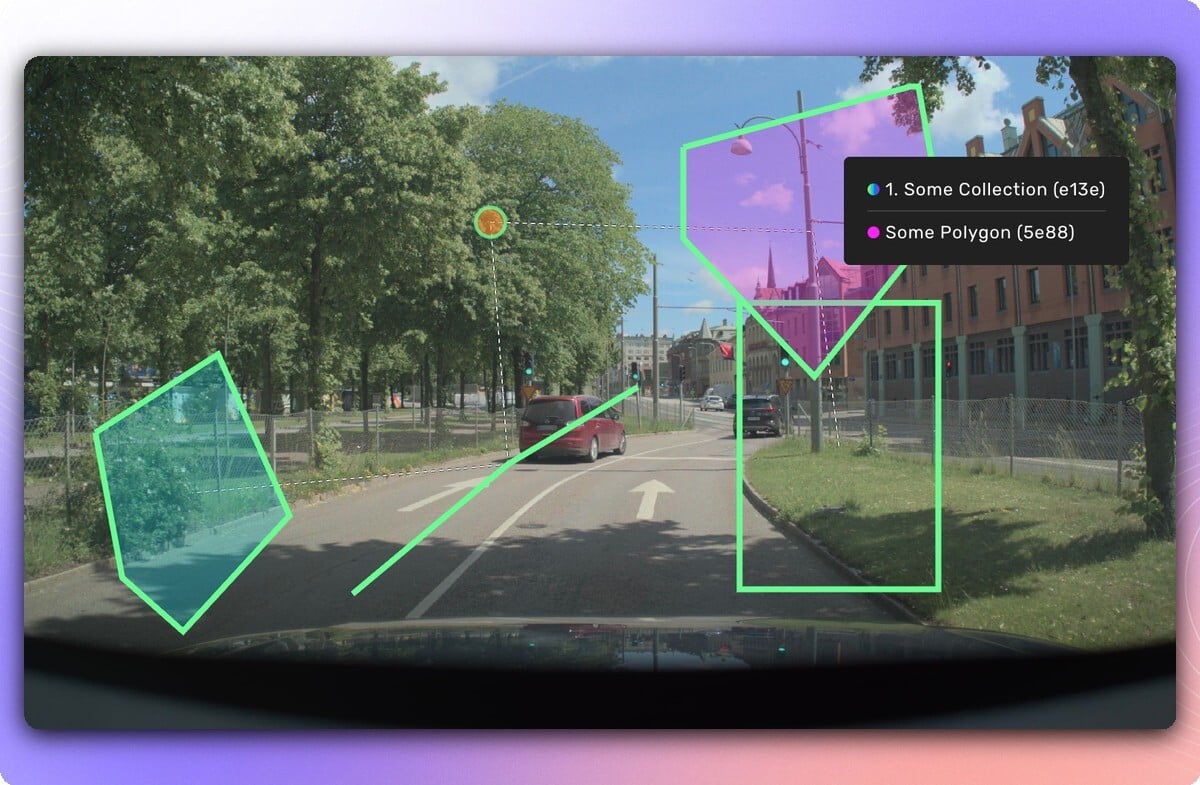
For lanes, View, Show object link area shades the stretch of road between two linked 3D lines or lanes, with one colour per area when a shape has several links. You see what a link covers, not only that it exists.
Available in: Drawing tool · Docs
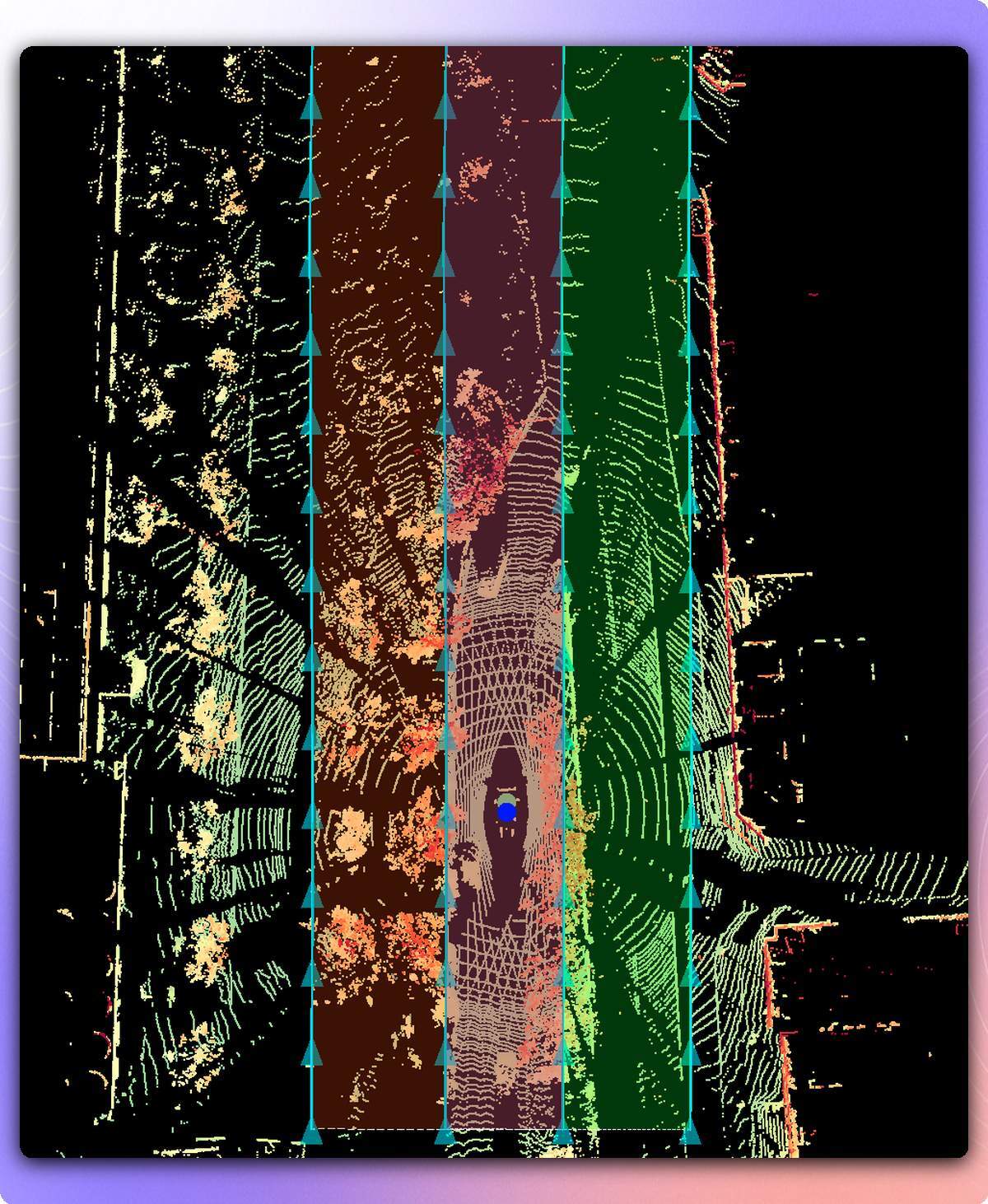
Plus: you can now link objects from the quick-properties menu, not only from the right-side panel. Pick the Linked object chip and click the target. With a multi-selection, that one click links every selected object in a single undoable step. Docs
Projects you can run without waiting on us
Project status
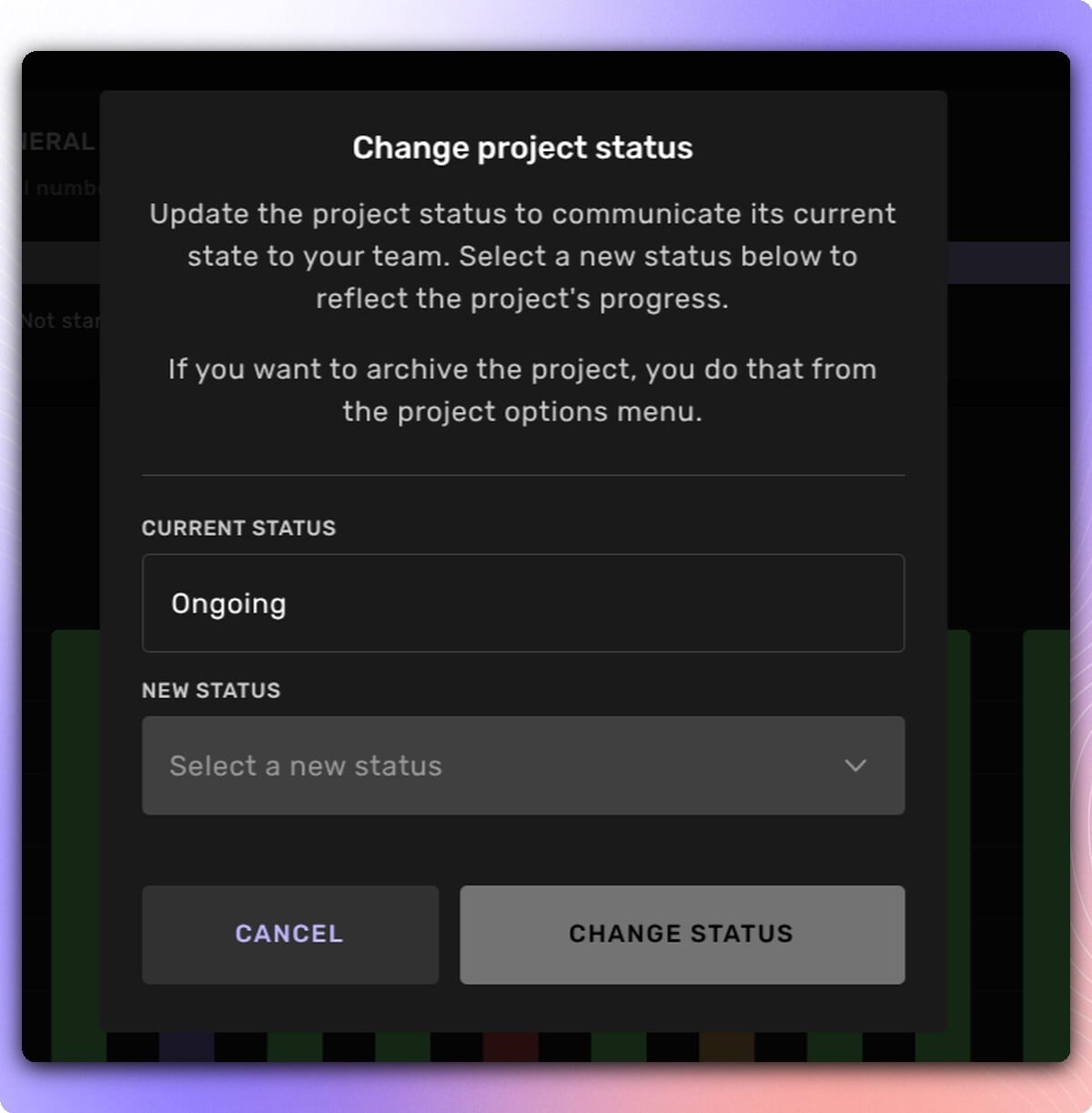
Which projects are actually running right now? Until this month the answer lived in people's heads and in project names. Projects now carry a status: Not configured, Not started, Ongoing, Paused or Completed. It shows as a chip in the project header and as a column in the Projects list, with filter chips that carry live counts and combine with Category and search. Archiving sits alongside as its own action.
Status also decides who can work. Pause, complete or archive a project and its tasks stop reaching the workforce from My Tasks, with a notice on the project and request pages explaining why. Together with August's Project category, you can now see why a project exists and where it stands.
Projects without a status fall back to the old field, which reads Not configured or Not started on most of them, so set it from the project's action bar. Changing status needs Admin or Project Manager.
Available in: Project Management, Projects
Change a request's workflow yourself
Want to add or drop a review phase before a request starts? If your organisation owns the workspace and produces the request, you can now do it yourself in Request Settings, General, Request Workflow. The section also tells you when a workflow is Kognic-managed or custom. You can switch away from a Kognic-managed workflow, but only Kognic can switch back to one.
Available in: Project Management, Request Settings · Docs
Choose who picks up a re-review
Sampled review phases have a new Re-review assignment setting in place of the Keep reviewer checkbox, so you can decide whether rework gets fresh eyes. Keep reviewer throughout phase, still the default, sends a re-review back to whoever reviewed it first. No preference puts it in the shared pool. Prefer a new reviewer also uses the pool, but offers the re-review last to anyone who has already reviewed that input.
It is a preference, not a rule. If everyone available has already seen an input, it goes to whoever has seen it least, so work never waits for a new reviewer. Set it per phase in Request Settings, Phases, or once per project under Default workflow phase settings, where new requests inherit it. Existing requests keep their current behaviour until someone changes it.
Available in: Project Management
P2P Sessions: peer coaching across every project
Where should peer coaching happen next? The new P2P Sessions page under Team Management shows every active project at once: the speed gap between its fastest and slowest fifth of annotators, and whether a session is running there. It also lists what has finished, what is booked and what reports this week, and the Annotate Speed change each project and each coach produced. Auto-suggest puts together groups of similar speed, assigns a coach to each and creates all the studies in one go. You can override any suggestion.
Study baselines now use the five working days before a session instead of three, so speed-change figures on existing Studies pages shift slightly.
Available in: Team Management, for Team manager and Admin roles · Docs
Knowledge base categories
A project's knowledge base gets hard to scan once it holds more than a handful of documents. You can now file documents under categories, each project with its own set, managed from Category settings on the Knowledge Base tab and in eight colours. Pick a document's category right under its title in the editor, and the documents list shows it as a coloured dot. Projects start with no categories, and existing documents show as Uncategorized until you sort them.
Available in: Project Management, Knowledge Base · Docs
Plus: API credentials now have a scope, read-only or read and write, shown in the list on the API credentials page. Admins and Developers can create either, and LQMs can now create read-only credentials themselves. And anyone who manages project settings can configure a project's live checkers in the app, by editing JSON or by handing the job to an LLM, with a button that copies the taxonomy and a link to the check reference guide. Docs
Meet us at Tech Blueprint, 13 October
Our CEO Daniel Langkilde takes the main stage at Tech Blueprint, the one-day conference at the centre of Gothenburg Tech Week, at World of Volvo on 13 October. His keynote is titled Teaching Machines to Understand the Physical World.
Physical AI is where models leave the screen and have to act in traffic, warehouses and factories. How well they do that depends on what they learn from. We have worked on that problem in autonomous driving since 2018, and it is now reaching robotics and industry. After the keynote he's joined by Susanne Timsjö, Managing Director of ABB Robotics Nordics, for a conversation on scaling physical AI, including what is happening across Asia.
If you're in Gothenburg that week, come and find us after the session. Tickets for Tech Blueprint

Questions? Reach out to your account team or contact us at support@kognic.com.