This month's releases focus on guidelines and checks inside the annotation tool, fixing many objects in one move, and seeing where work piles up across your projects. Here's what's new in the platform.
The guideline and the check, next to the object
Until now, answering "how should this be annotated?" meant leaving the task: a guideline PDF that often runs past a hundred pages in one window, the scene in the other. This month both the rule and the check that enforces it moved into the tool, next to the object you're working on.
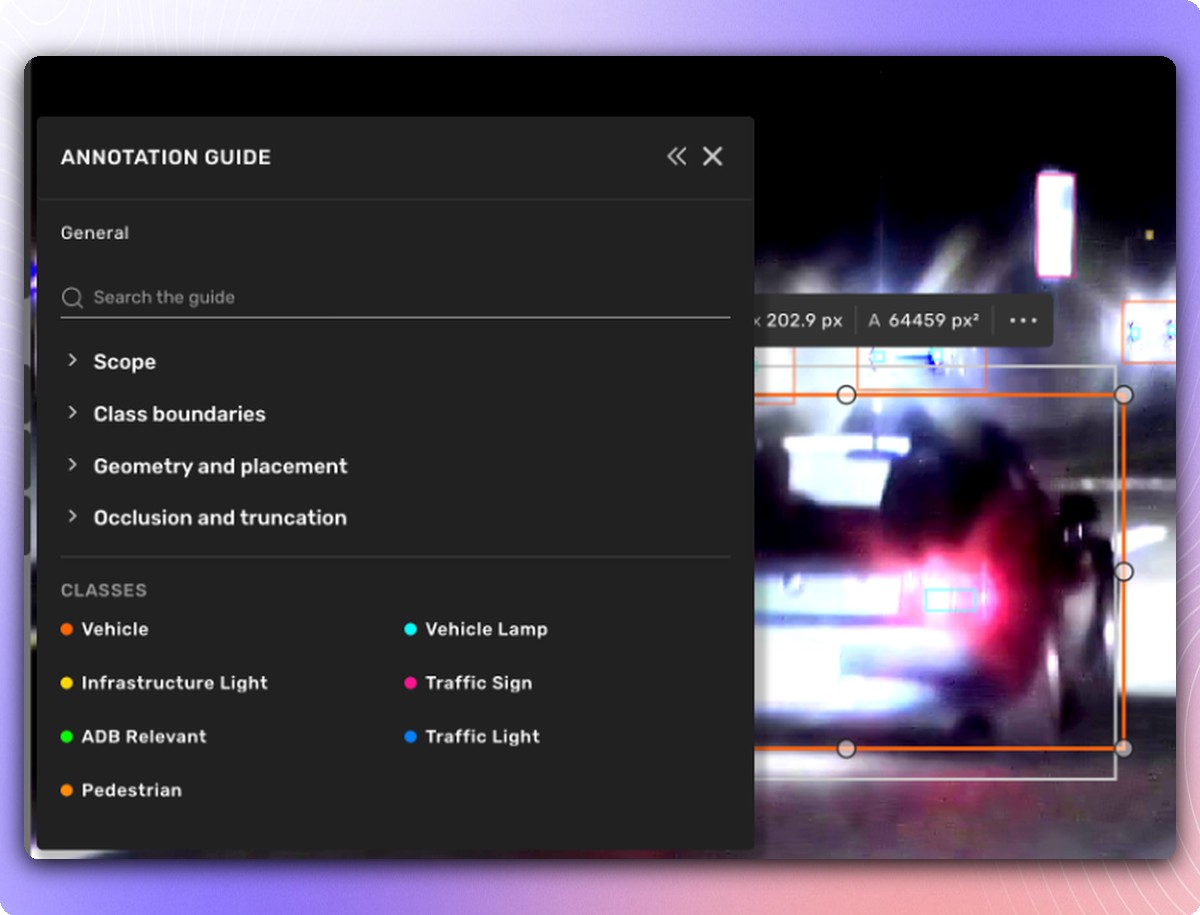
Annotation guide inside the tool
Open the guide with the book icon in the top bar, or press i. Hover a class, property or value in the sidebar and jump straight to its guidance, with example images beside each explanation and the dos and don'ts listed for every item. The guide follows your selection, so property pages scroll to the value currently set, and a search on the General page covers names, descriptions, dos, don'ts and example captions.
It appears on tasks where the project's guideline has a guide set up. Tasks without one look exactly as before.
Available in: Annotation tool, top bar and sidebar · Docs
A report card on every object that fails a check
Live checks run as you annotate, and now you see the result on the object itself. Objects with errors or warnings get a warning icon in the object list and a pin in the view. Click either and a report card opens next to the object, stepping through its issues one at a time with a link to the source and time of each.
The validation log gains a Selected object only filter, and Dismiss is now called Archive.
Available in: Drawing tool, where live checks are configured for the project · Docs

Twelve new live checks
September put live checker configuration in the app. October adds the checks people asked for. For cuboids: height above the detected ground, limits on roll, pitch, yaw or overall tilt, a rotation compared with a matching cuboid, and the number of lidar points inside, optionally from given sensors only. For 3D lines: whether two lines meet end to end, a line end attached mid-line, duplicate vertices, linked lines that branch or loop back. Plus a 2D shape's distance from the image border, an object's distance from the ego vehicle's path, and a lane transition type (split, merge or continue) that disagrees with the lane graph.
Rules can also follow links now, as in "the left lines of the lanes that follow me", and run a check on a linked object while reporting it on the one being annotated.
Available in: Project settings, for project managers · Docs
Fix many objects in one move
When pre-labels are off, they're usually off the same way everywhere: a whole set of 3D lines sitting a little too high, a batch of shapes nudged sideways. Correcting them one by one was the slow part, and this month's drawing-tool updates go after it.
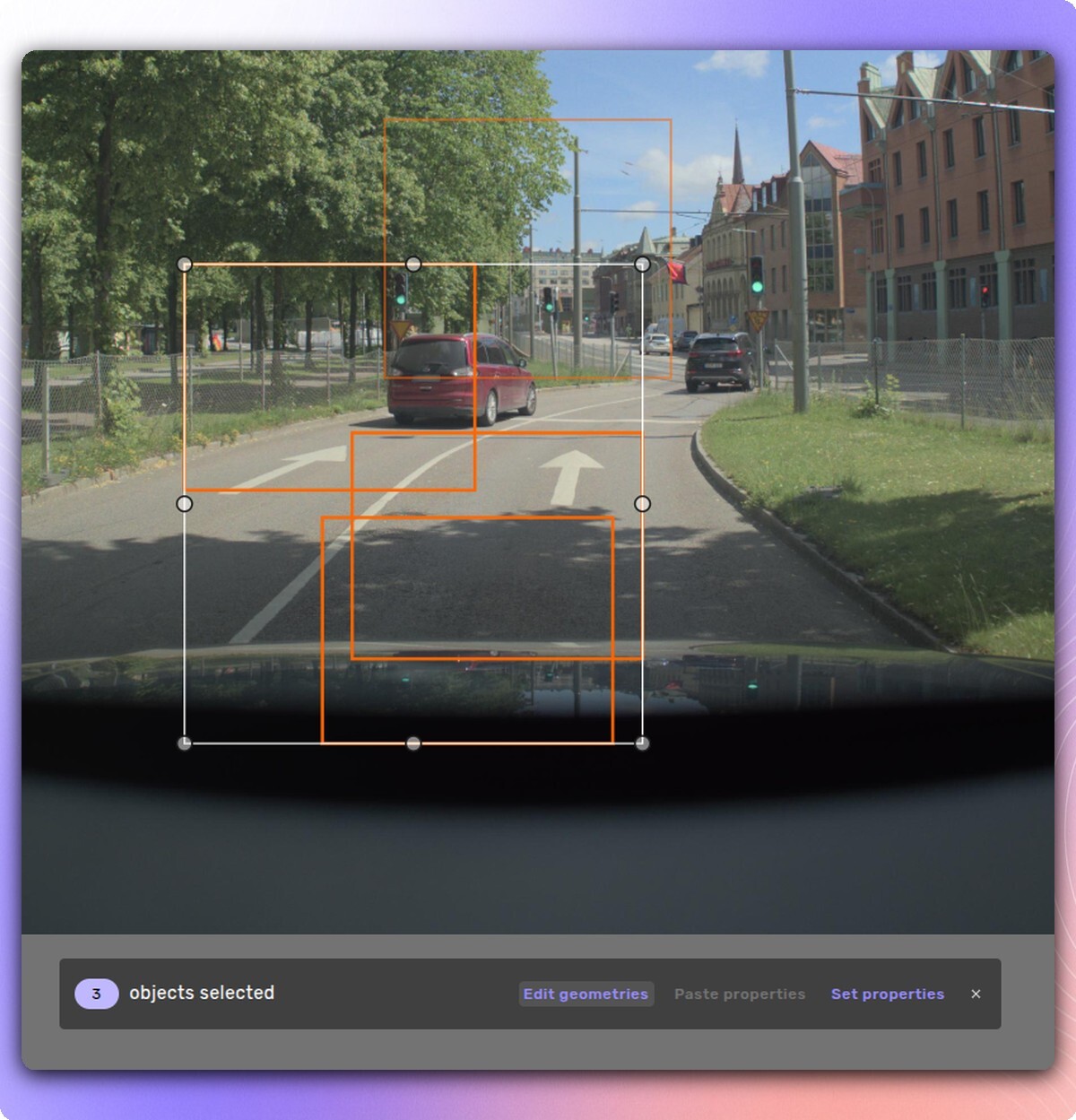
Edit multiple geometries at once
Select two or more objects and click Edit geometries in the batch action bar to move and rotate them together, in 2D and 3D. When the selection includes 3D lines or lanes, Align all nodes to ground brings every node of all of them down to the ground in one step. Locked or inactive objects in the selection are left untouched.
Available in: Drawing tool, multi-selection · Docs
See the points under your lanes
Strongly coloured lane fills and link areas could hide the very point cloud you were annotating against. Geometry Settings now has a Fill opacity slider for 3D lane surfaces and, under Helpers 3D, one for the shaded area between linked 3D lines. To hide the link area entirely, turn off Show object link area in the View menu.
Available in: Drawing tool, Geometry Settings · Docs

Plus: Selected 3D points now get the same action bar as 3D line nodes, with measurements, property labels, Detach (when the point sits on a line node) and Align to ground. Docs And for 2D segmentation on sequences, where every frame is annotated on its own anyway, a project can now keep each shape on the frame it was drawn on, so nothing propagates or interpolates into neighbouring frames. It's switched on in annotation instructions, under Configuration.
Where your projects stand, and how your scenes line up
See where work is piling up
The Projects list in Project management has three new columns. Workflow stages shows where each project's inputs are right now; hover the bar for the count per stage. WIP per member divides the work in progress by the workforce members active on the project in the last seven days. Completed this week counts inputs that reached production complete since Monday, with the average of the previous four weeks underneath.
What you see follows your role on each project: producers see the detailed stages and WIP, while owners and reviewers see stages grouped into Production, Client QA and Delivery. A settings menu next to the search hides the not-started and delivery stages, or includes archived projects.
Available in: Project management, Projects tab
Calibration editor
See how a change to a camera calibration affects the projection, before or after annotation. When the projection looks right, save it as an alternative calibration. It never replaces the original, and closing the editor restores the original so annotations are unaffected. Saved alternatives can be fetched through the Input API. It works on scenes with lidar and cameras, edits camera calibrations, and needs the Developer or Annotation Manager workspace role.
Available in: Annotation tool, Window menu · Docs
Plus: The annotation app is now available in Korean, and so is the API guide. API guide in Korean
Questions? Reach out to your account team or contact us at support@kognic.com.