Every Kognic platform update in one place, newest first. Each section is the monthly update as it was published, so you can follow how the annotation tools, automation and quality checks developed over time. The latest issue is always on the blog as its own article first.
- Kognic Platform Update | September 2026 (Sep 2026)
- Kognic Platform Update | August 2026 (Aug 2026)
- Kognic Platform Update | July 2026 (Jul 2026)
- Kognic Platform Update | June 2026 (Jun 2026)
- Kognic Platform Update | May 2026 (May 2026)
- Kognic Platform Update | April 2026 (Apr 2026)
- Kognic Platform Update | February & March 2026 (Mar 2026)
- Kognic Platform Update: Quality Alignment, Programmatic Checks & Annotation Tools | January 2026 (Jan 2026)
- December spotlight - New features to increase annotation productivity (Dec 2025)
- Kognic Product Updates – October/November 2025 (Nov 2025)
- Kognic Product Updates – September 2025 (Sep 2025)
- Kognic Product Updates – August 2025 (Aug 2025)
- Kognic Product Updates - June 2025 (Jun 2025)
- Kognic Product Updates - May 2025 (May 2025)
- Kognic Product Updates - April 2025 (Apr 2025)
- Kognic Product Updates - March 2025 (Mar 2025)
- Kognic Product Updates - February 2025 (Feb 2025)
- Unlocking (even) more productivity with wider co-pilot support (Feb 2025)
- Kognic Product Updates - January 2025 (Jan 2025)
- Product Release: Annotation Productivity Analytics (Jan 2025)
- October Spotlight: New features to boost annotation productivity (Oct 2024)
Kognic Platform Update | September 2026
Published 28 September 2026
This month's releases focus on whole lidar sequences on screen at once, feedback that points at the exact node, class or frame, and projects you can run without waiting on us. Here's what's new in the platform.
The whole sequence, without the sliders
Open an aggregated lidar scene this month and the first thing you'll notice is what's missing: the two sliders that used to decide how much of it you could see.
Aggregated point clouds, all frames at once
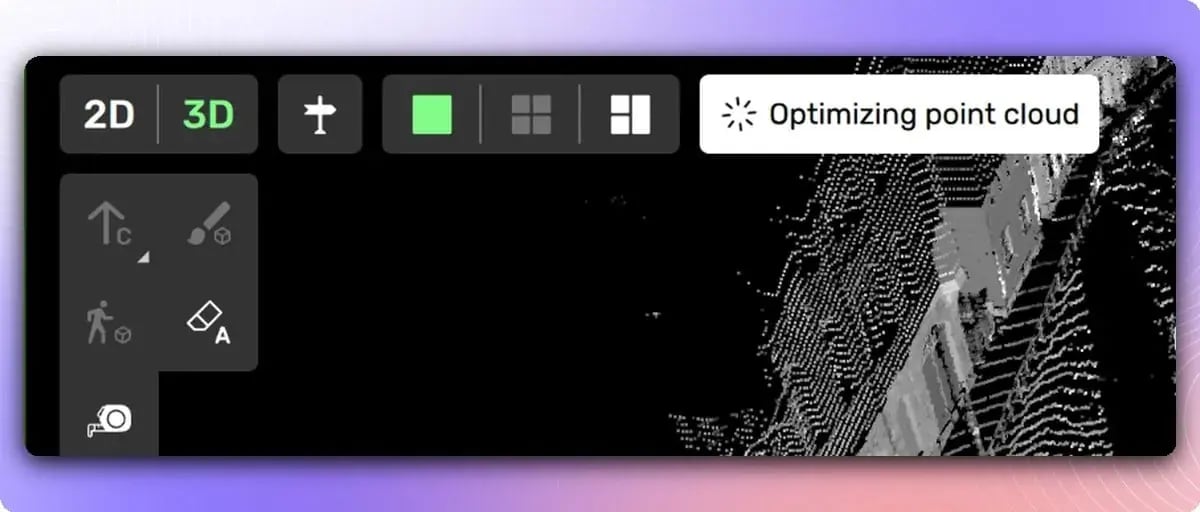
Every frame of an aggregated scene now renders in one point cloud, for every user. The spacing and number-of-frames sliders were there for computers that couldn't handle the full aggregate, and they aren't needed any more.
The first time a scene finishes loading, an "Optimizing point cloud" spinner appears in the top left corner. There's nothing for you to do. Once it's gone, the view moves more smoothly.
Available in: Drawing tool
Follow the ego vehicle
Jump to a frame in an aggregated scene, say from a scene property, and the ego vehicle used to end up off screen, so you had to fly back to find it. Turn on Follow ego vehicle in the 3D camera mode menu and the camera keeps the same offset to the ego vehicle as you step through the sequence. It's off by default.
Available in: Drawing tool · Docs
Orthographic 3D camera
Is that lane line straight, and does it run parallel to the one beside it? Perspective makes that hard to judge. The free-form 3D camera, the one you rotate freely around the point cloud, can now switch to an orthographic projection under View, 3D camera projection. With the distortion gone, you can see the answer at a glance.
Available in: Drawing tool · Docs
Feedback that points at the exact thing
Review feedback often reads like directions: the third node after the merge, the class that should have been road. This month's releases let the feedback point at the thing itself.
Numbered nodes and automatic pins on 3D lines and lanes
Turn on View, Show node indices and every node on a 3D line or lane gets a number, starting at 1, in the main view and in the picture-in-picture.
Feedback on a line or lane now drops a pin as well: where you clicked on the shape, or on the node you had selected when you opened the form. The annotator clicks Go to pin on the feedback card and lands on that exact spot.
Available in: Drawing tool, 3D line and lane tasks in lidar · Docs
Class and pin feedback in 3D semantic segmentation
When you review 3D semantic segmentation, one click in the point cloud now selects the class and pins that point, from the Add feedback form or from quick feedback. Until now classes couldn't be selected at all, so the class had to be spelled out in the comment. With a class and a pin together you also get the object error types, plus any error type that needs both.
Available in: Drawing tool, 3D semantic segmentation · Docs
Images on feedback
Some corrections are easier to show than to describe. Reviewers can attach images to individual feedback items, from the file picker or by pasting straight from the clipboard into the feedback dialog. Annotators see them in the task, and so does anyone opening a view link.
Available in: Drawing tool · Docs
Seeing how a scene fits together
Scene event markers on the video bar
One miscalibrated frame in a long sequence used to be hard to flag and harder to find again. Projects can now mark a scene property value as an event. Every frame with that value gets a red marker on the video bar: hover it to see the value, click it to jump there. While you're on one of those frames, a red chip with the value sits at the top of the view.
It's set up in annotation instructions, with two new settings on boolean and multiple-choice scene properties. Prevent propagation keeps a value on the frame where it was set, and Highlight value picks which value gets the marker.
Available in: Drawing tool · Annotation instructions · Docs
Scene properties across the whole sequence
Reviewing scene properties no longer means stepping through a sequence frame by frame. Select Scene properties in the object list, set the video bar to Property values, and you see every value and every change along the whole timeline.
Available in: Drawing tool · Docs
Collections and links you can see
When one object is built from several shapes, you can now see which shapes belong together. Hover a shape in the property overlay and the popup leads with its collection. Turn on Show collection members and dashed lines connect the members of every collection in view, with the rest of the scene fading while you hover one. Object link highlighting now fades the rest of the scene in the same way.
For lanes, View, Show object link area shades the stretch of road between two linked 3D lines or lanes, with one colour per area when a shape has several links. You see what a link covers, not only that it exists.
Available in: Drawing tool · Docs
Plus: you can now link objects from the quick-properties menu, not only from the right-side panel. Pick the Linked object chip and click the target. With a multi-selection, that one click links every selected object in a single undoable step. Docs
Projects you can run without waiting on us
Project status
Which projects are actually running right now? Until this month the answer lived in people's heads and in project names. Projects now carry a status: Not configured, Not started, Ongoing, Paused or Completed. It shows as a chip in the project header and as a column in the Projects list, with filter chips that carry live counts and combine with Category and search. Archiving sits alongside as its own action.
Status also decides who can work. Pause, complete or archive a project and its tasks stop reaching the workforce from My Tasks, with a notice on the project and request pages explaining why. Together with August's Project category, you can now see why a project exists and where it stands.
Projects without a status fall back to the old field, which reads Not configured or Not started on most of them, so set it from the project's action bar. Changing status needs Admin or Project Manager.
Available in: Project Management, Projects
Change a request's workflow yourself
Want to add or drop a review phase before a request starts? If your organisation owns the workspace and produces the request, you can now do it yourself in Request Settings, General, Request Workflow. The section also tells you when a workflow is Kognic-managed or custom. You can switch away from a Kognic-managed workflow, but only Kognic can switch back to one.
Available in: Project Management, Request Settings · Docs
Choose who picks up a re-review
Sampled review phases have a new Re-review assignment setting in place of the Keep reviewer checkbox, so you can decide whether rework gets fresh eyes. Keep reviewer throughout phase, still the default, sends a re-review back to whoever reviewed it first. No preference puts it in the shared pool. Prefer a new reviewer also uses the pool, but offers the re-review last to anyone who has already reviewed that input.
It is a preference, not a rule. If everyone available has already seen an input, it goes to whoever has seen it least, so work never waits for a new reviewer. Set it per phase in Request Settings, Phases, or once per project under Default workflow phase settings, where new requests inherit it. Existing requests keep their current behaviour until someone changes it.
Available in: Project Management
P2P Sessions: peer coaching across every project
Where should peer coaching happen next? The new P2P Sessions page under Team Management shows every active project at once: the speed gap between its fastest and slowest fifth of annotators, and whether a session is running there. It also lists what has finished, what is booked and what reports this week, and the Annotate Speed change each project and each coach produced. Auto-suggest puts together groups of similar speed, assigns a coach to each and creates all the studies in one go. You can override any suggestion.
Study baselines now use the five working days before a session instead of three, so speed-change figures on existing Studies pages shift slightly.
Available in: Team Management, for Team manager and Admin roles · Docs
Knowledge base categories
A project's knowledge base gets hard to scan once it holds more than a handful of documents. You can now file documents under categories, each project with its own set, managed from Category settings on the Knowledge Base tab and in eight colours. Pick a document's category right under its title in the editor, and the documents list shows it as a coloured dot. Projects start with no categories, and existing documents show as Uncategorized until you sort them.
Available in: Project Management, Knowledge Base · Docs
Plus: API credentials now have a scope, read-only or read and write, shown in the list on the API credentials page. Admins and Developers can create either, and LQMs can now create read-only credentials themselves. And anyone who manages project settings can configure a project's live checkers in the app, by editing JSON or by handing the job to an LLM, with a button that copies the taxonomy and a link to the check reference guide. Docs
Meet us at Tech Blueprint, 13 October
Our CEO Daniel Langkilde takes the main stage at Tech Blueprint, the one-day conference at the centre of Gothenburg Tech Week, at World of Volvo on 13 October. His keynote is titled Teaching Machines to Understand the Physical World.
Physical AI is where models leave the screen and have to act in traffic, warehouses and factories. How well they do that depends on what they learn from. We have worked on that problem in autonomous driving since 2018, and it is now reaching robotics and industry. After the keynote he's joined by Susanne Timsjö, Managing Director of ABB Robotics Nordics, for a conversation on scaling physical AI, including what is happening across Asia.
If you're in Gothenburg that week, come and find us after the session. Tickets for Tech Blueprint
Questions? Reach out to your account team or contact us at support@kognic.com.
Kognic Platform Update | August 2026
Published 31 August 2026
This month's releases focus on the annotation-tool work that waited for summer to end, fewer trips into menus while you are actually working, and project settings that hold on to what you configured. Here's what's new in the platform.
Instant validation, and every camera at once
Four features sat on the next environment through July because they were too large to push mid-summer. They are all in the main app now.
Live checkers
Checkers are evaluated on every change, and the Validate button is gone. Validation happens as you work rather than when you remember to ask for it, which shortens the loop between making a mistake and seeing it.
Checkers can produce false positives, so warnings can be dismissed. A dismissed warning stays dismissed as more timestamps are added to it, and a filter brings dismissed warnings back into view when you want them. Where a project uses a checker that cannot be converted to the new format, the system falls back to the old evaluation and the Validate button returns.
Available in: Drawing tool · Docs
Every camera in one grid
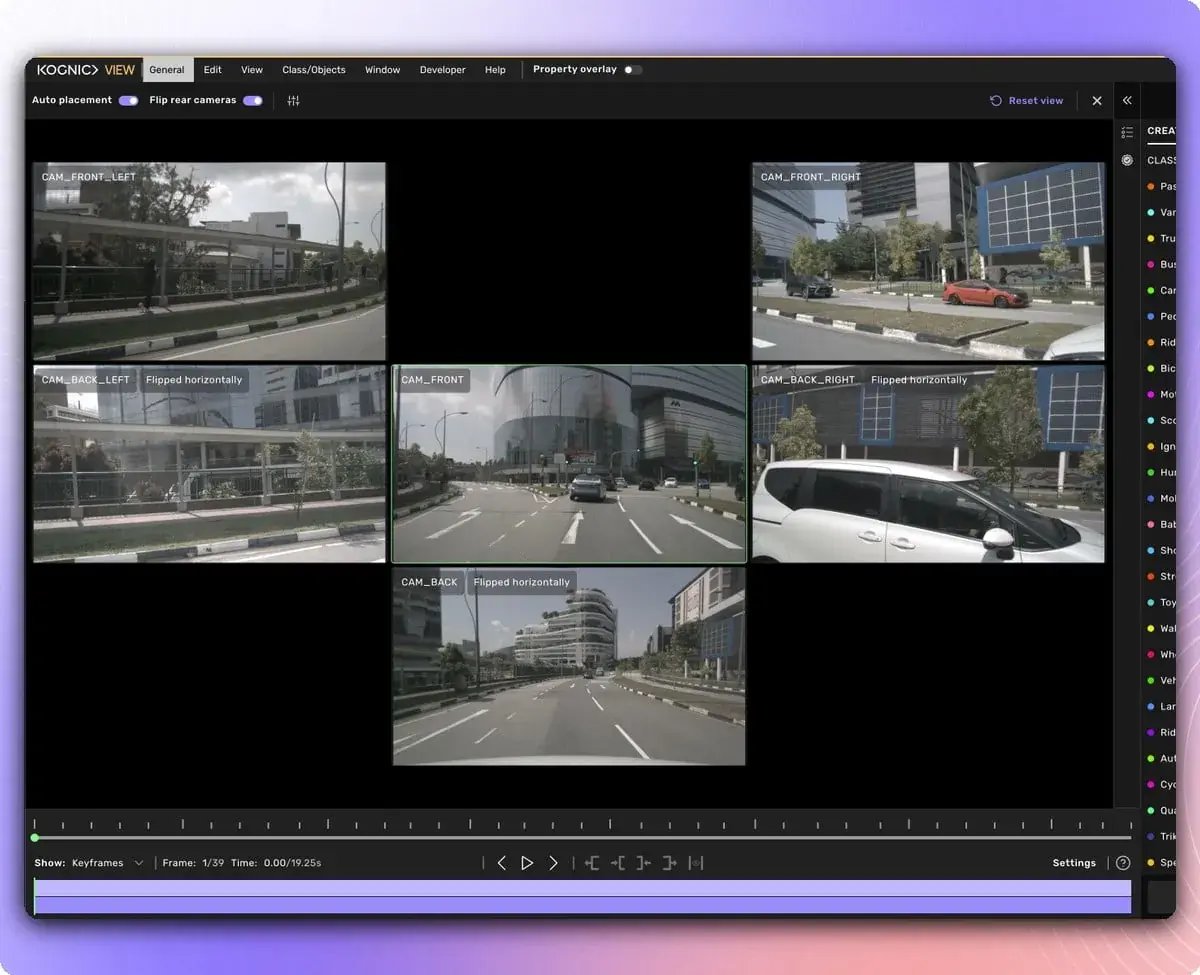
The camera drawer has an expand button that opens it into a grid of every 2D camera at once. The videobar, sidebar and topbar stay where they are, so the full surround view of the scene does not cost you task context. Close the grid to return to the normal single-camera drawer.
This matters most when setting scene properties on a task with several cameras. The alternatives were cycling through cameras one at a time, or accepting the reduced size each camera gets in the 3D split view.
Available in: Drawing tool · Docs
The 2D grid, reworked
The 2D grid view has a toolbar along the top for moving to the 3D view and switching between views. Property values are editable on the thumbnail itself: where a property can be changed in 2D you get a dropdown instead of a read-only label. Changing a property across a multi-selection now has a button in the batch action bar, where it previously existed only as a keyboard shortcut and most people never found it.
A Group By control groups images by Source or by Frame. Group by frame to see one object across every camera in that frame; group by source to see it across every frame of one camera. Groups where the object is not visible anywhere are hidden, so you only get the cameras that have something to say. Both came out of occlusion work, where judging visibility means comparing cameras against each other rather than reading them one by one.
Available in: Drawing tool · 2D grid view · Docs
Fewer trips to the menu
Keyboard shortcuts for Pixelated and Histogram equalization
Both image adjustments can be bound to a key. Open the keybindings window, find "Toggle pixelated" and "Toggle histogram equalization" under View, and assign whatever you like. Once bound, the top menu shows the key next to each item.
The argument for it is in the usage. Over 90 days, Pixelated was triggered 410,620 times and Histogram equalization 69,878 times, and every single one of those was a trip into the View menu. At that volume it should be a keypress. Both ship unbound, so nothing changes until you set a key.
Available in: Drawing tool · Docs
Cuboid dimensions in the object cameras
Each object camera shows the size of the selected cuboid in metres, for the two dimensions visible in that view. The number of decimals follows the object label setting. Checking whether an object is roughly the right size no longer means opening its properties and coming back. Cuboids only, and the 2D grid view does not show dimensions.
Available in: Drawing tool
Hide objects by property value
The property overlay could isolate a value but never hide one, so any review where the interesting set was "everything except this" meant working around the filter instead of using it.
Now, hovering a value in an expanded property gives you a hide icon. Every object with that value disappears, including objects that have no value set for that property, while the rest of your selected classes stay visible. Several values can be hidden at once, and the result saves to a favorite filter.
Available in: Drawing tool · Docs
Plus: three smaller changes pulling the same direction. Camera orbit and pan can be swapped so left-click orbits, saved per user and applied in both Fly and Orbit control. In projects configured with a per-camera region of interest range, 3D objects beyond that range are no longer projected into that camera's image, and a checkbox turns the filtering off. And "Reset my changes" has moved out of the sidebar into the Edit menu, away from the Validate and Submit buttons it used to sit beside, where it was reached by reflex more often than by intent.
Projects that hold on to how they should run
Default request workflow settings carry to new batches
A project's default request workflow now stores per-phase configuration, not only which workflow to use. The selector in Project Settings, General carries a summary of the configured phases, for example "Review 1: 10% sample, Review 2: 25% sample", and Edit configuration opens a panel with one section per phase covering sampling method and rate, quality-based review selection, assignment rules and block review edits. A workflow containing the same phase twice lists them separately, so the two can be configured differently.
Until now the project default stored the workflow and nothing else, so every new batch rebuilt it from the built-in template. A Sampled Review always came back at 20 percent and quality-based selection was dropped silently. A project that wanted 10 percent had to correct every request by hand, every batch. Saving affects future batches only; requests that already exist are untouched.
Available in: Project Settings · General
Project category
Projects can be labelled Production, Pilot, Training or Demo. The category is required when you create a project and can be changed later in Project settings, General. The Projects list has a Category column and the project header carries it as a chip.
Why a project exists has been living in parentheses in the project name, which nothing can filter on and which clutters client project pages. Note that category answers why a project exists, not where it is in its lifecycle; that is a separate thing in progress. Existing projects show as Not set until someone gives them one.
Available in: Project Management
Studies: pick who to coach from the metrics
The user breakdown table on Metrics, Productivity is selectable, and the batch bar offers Create study with the people you ticked already added as members. A Training sessions column shows how many coaching studies someone has been part of, with a booked but not-yet-started round shown after the count as "2 (+1)". The coach dropdown is ordered by Annotate Speed, fastest first, each option labelled with the speed it was ranked on. The studies list gained Type and Coach columns with a filter bar.
Choosing who to coach is a judgement about speed and about who has been coached recently. Both numbers already lived on the Productivity tab, but studies could only be created from the Study tab, where members were picked by name with no metrics in front of you. The judgement was made on one screen and carried to another from memory, and the same people kept getting picked because nothing showed who had been through it already.
New studies now default to two weeks rather than one and require at least one member.
Available in: Project Management · Study and Metrics · Docs
Plus: favorite projects are no longer a separate tab. They sit as a section directly above All projects in the reworked list, so you star and find projects in the same place, and sorting is remembered between visits. Delivery metrics now carry frame counts for projects whose deliveries are measured in frames, showing the total and the last two calendar weeks.
Tighter geometry going in and coming out
Better motion compensation on scene creation
Point cloud motion compensation now interpolates IMU data points. Scenes with sparse IMU data used to smear the points of moving objects, and that smearing is what pushed some data through external motion compensation before upload. Every motion-compensated scene created since 24 August benefits from it.
The effect downstream is tighter boxes, though it is only really visible in the cases that were badly affected to begin with.
Available in: Scene creation
Export cuboids at every camera's shutter time
A new annotation instruction setting, "Always export at image timestamps", projects cuboids to each camera's shutter time even when the object is not visible in that camera. It applies to multi-sensor projects, where cuboids are annotated in one sensor and the export also carries where the object was when other sensors saw it.
Available in: Annotation instructions · Docs
Plus: number properties can carry minimum and maximum values that limit what can be entered in the drawing tool, and class group items can carry instance limits. Both are configured in annotation instructions.
Questions? Reach out to your account team or contact us at support@kognic.com.
Kognic Platform Update | July 2026
Published 29 July 2026
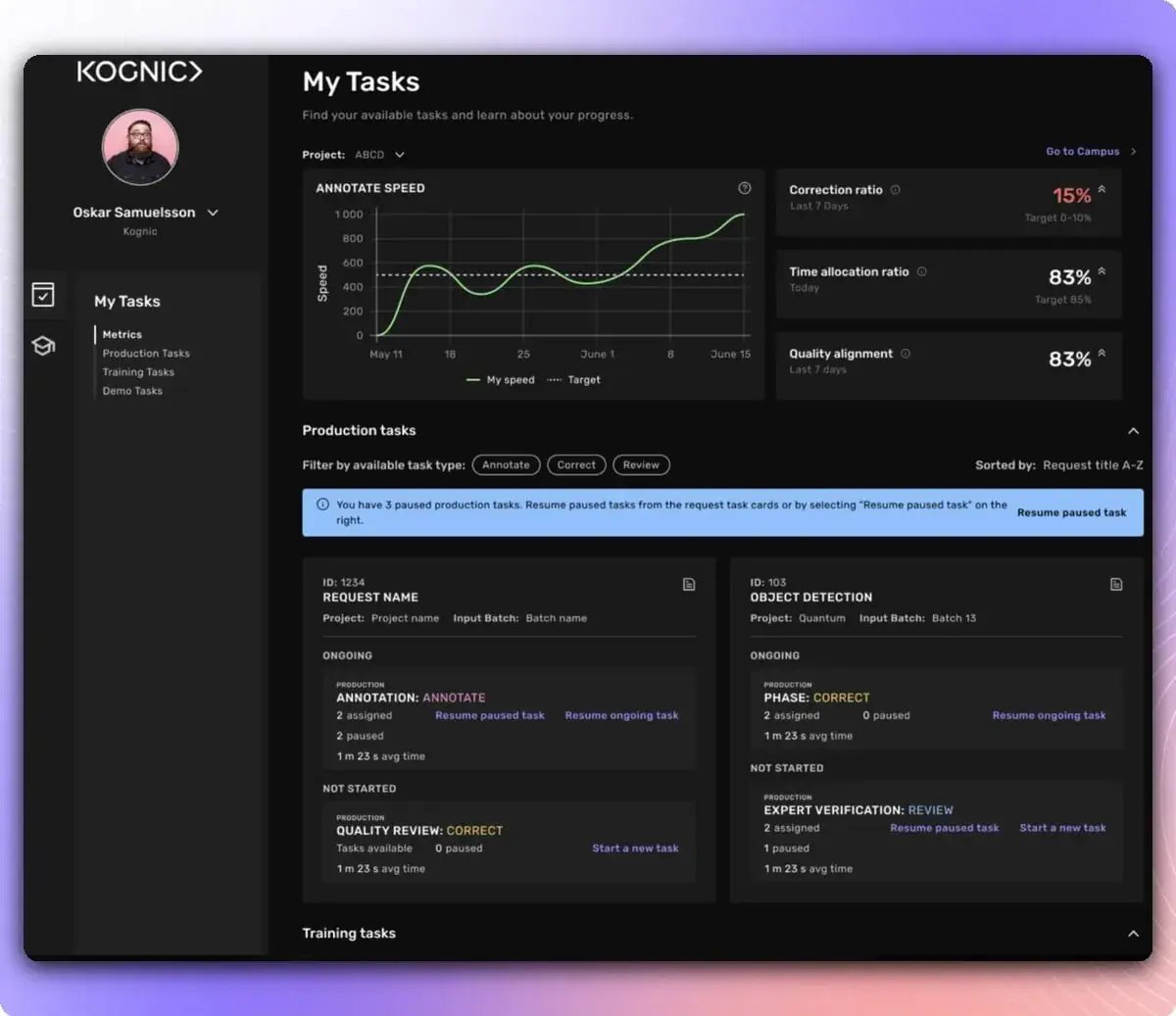
This month's releases focus on clearer performance signals, review effort spent where it matters, and faster navigation across the platform. Here's what's new in the platform.
See performance clearly
My Tasks: redesigned performance metrics
The metrics section on My Tasks has a new layout. You get a Speed chart showing daily annotation points per hour against your project's target line, plus three KPI cards: Correction ratio, Time allocation ratio, and Quality score with a hover breakdown of precision, recall, geometry accuracy, and property accuracy. A project selector scopes everything to one project, defaulting to the one you worked on most recently.
The KPI cards cover the last 7 days and carry trend arrows, so you can tell at a glance whether your numbers are moving the right way.
Available in: My Tasks · Docs
Studies: measure whether a group actually improves
A new Study tab in Project Management follows a group of project members over a set period and compares their work against the rest of the project. Choose P2P coaching, one coach and their students, or Group tracking for any group. Each study tracks Annotate Speed against target, Quality score, Time allocation ratio, and Correction ratio.
The speed change since start only shows a colored arrow when it exceeds the group's normal day-to-day movement, so a noisy week does not read as a win or a loss. Two tables give you the per-member view: a summary of speed and quality from start to end, and a daily KPI table colored against baseline. Use studies to see whether a coaching session, a new feature, or a course actually moved the numbers.
Available in: Project Management · Study tab · Docs
Spend review time where it matters
Quality-based sampling
Quality Review phases can now select inputs based on estimated quality instead of a flat share of every annotator's work. Set a target quality, say 95 percent: inputs at or above it skip manual review, while inputs below it, and any input without an estimate yet, go to review. Estimates build on reviewed work from roughly the last 60 days, so annotators whose work keeps getting skipped cycle back into review as history ages out.
Flat-percentage review spends reviewer time on work that is already good. Quality-based sampling points it at the inputs most likely to have problems, reducing review volume without lowering the quality bar.
Available in: Request Settings · Phases · Quality Review
Review phases: edit geometry only
Review phase settings now offer a middle ground between fully editable and fully locked. The "Block review edits" option on each review phase card lets reviewers adjust existing object geometry while property changes and creating or deleting objects stay blocked. Reviewers can correct what matters without risking unintended changes to classifications or the object set.
Available in: Request Settings · Phases
Plus: the Quality Review and Expert Verification overview has been tidied up. Gate status now sits on the Overview, and two new cards show the actual and planned input review samples.
Find things faster
Omnibar improvements
The omnibar now searches pre-labels by UUID, finds scenes without inputs, pending scenes, or scenes with errors, and jumps to a workspace's project page by workspace name or UUID. Leading and trailing spaces no longer break a search. Scene and pre-label tables also load noticeably faster, down from waits of up to 30 to 40 seconds, by fetching only the last three months of history.
Available in: Omnibar (cmd+K)
Coming up in August
A set of annotation-tool updates is already live on the next environment and lands in the main app after summer: an expanded camera drawer that shows every 2D camera in one grid, a toolbar and direct property editing in the 2D grid view, a group-by-frame-or-camera control in the image grid, and live checkers that validate every change instantly, no Validate button needed.
Questions? Reach out to your account team or contact us at support@kognic.com.
Kognic Platform Update | June 2026
Published 29 June 2026
This month's releases focus on three areas: clearer performance visibility, sharper 3D annotation tools, and a faster review loop. Here's what's new in the platform.
Track performance with more precision
Learning Curve
Learning Curve is a new view on the Quality Management page that shows how annotation quality changes over time for individual annotators and teams. You can track whether a workforce is improving, plateauing, or drifting, without manually pulling reports. Use it to spot who needs support early, and to build a clearer case for training investments.
Available in: Quality Management · Docs
Annotate Speed replaces Productivity
The Productivity metric has been replaced by Annotate Speed, a more precise measurement that captures how quickly annotators complete annotation work specifically. It separates annotation time from other platform activity, giving QMs a cleaner signal when comparing performance across annotators and requests.
Available in: Annotator dashboard, QM overview, BPO Management · Docs
Sharper 3D annotation
Combined line
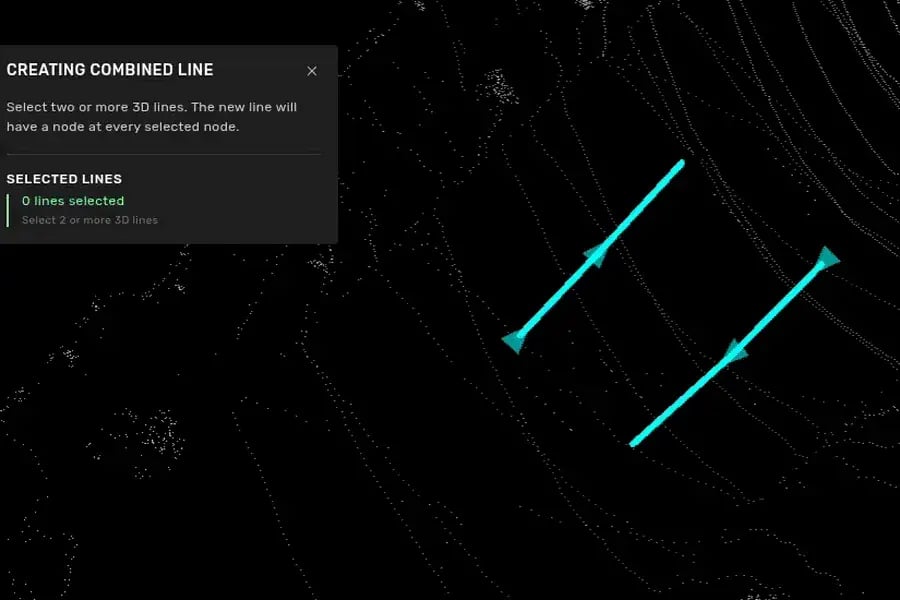
You can now cut multiple 3D line and lane segments in a single stroke instead of drawing them one at a time. Select Combined line from the derived classes menu, draw the path, and the segments are created in one step. For dense scenes with many lane markings, this removes the most repetitive part of the workflow.
Available in: Drawing tool · Docs
Bounding box assist
Action Assist now works for bounding box annotation in 2D/3D fusion tasks. As you annotate, the tool steps the camera view alongside your work so you stay focused on placing boxes rather than managing the viewport. The same assist pattern used for 3D lines and lanes, now applied to bounding boxes.
Available in: Drawing tool, 2D/3D fusion · Docs
Rotation indicator
When rotating a 3D object in the drawing tool, you now see a clear visual indicator showing the active rotation mode. No more guessing which axis is locked mid-edit.
Available in: Drawing tool · Docs
Connected objects redesign
The connected objects panel has been redesigned for clarity. Objects in a connected group are easier to identify, select, and manage, especially in busy scenes where multiple connections are active at once.
Available in: Drawing tool · Docs
A faster review cycle
Combined pin and object feedback
Reviewers can now attach a single feedback comment to both a pin location and a specific object at the same time, instead of creating two separate items. The combined comment appears in both the spatial view and the object list, so annotators have full context when making corrections.
Available in: Review mode · Docs
Favorite property overlay filters
Frequently used property overlay filters can now be saved as favorites. On annotation tasks where you check the same properties every session, this removes the setup step entirely.
Available in: Annotation tool · Docs
Prelabel attention frames
When working with prelabeled data, the platform now flags frames that need closer review: typically frames where the prelabel confidence is lower or where the annotation requires human judgment. Annotators can navigate directly to flagged frames instead of stepping through the full sequence.
Available in: Annotation tool (prelabel tasks) · Docs
Coming up in July
One more thing on the way: an Annotate Speed indicator in the task toolbar. It shows your speed as a percentage of the project target while you work, so the feedback arrives in context, not in the dashboard after the fact.
Questions? Reach out to your account team or contact us at support@kognic.com.
Kognic Platform Update | May 2026
Published 28 May 2026
This month's drawing-tool release focuses on sharper 3D edits, cleaner multi-sensor views, and faster work across multi-selections. Here's what's new in the platform
Sharper 3D edits, cleaner views
Object Camera Ruler
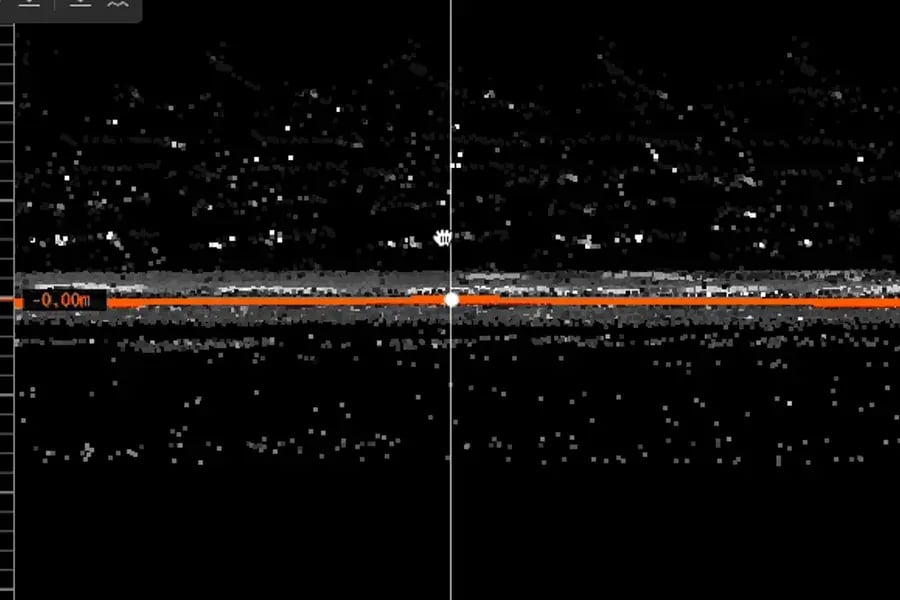
A ruler overlay is now available in the back and right object camera views, showing Z-axis measurements in metric units. When you drag an object vertically, a delta indicator shows exactly how far it has moved in real time (for example, "+3 cm" or "+0.5 m"), colour-coded from red at 0 m through orange around 0.125 m to fully green at 0.25 m or more.
The ruler helps annotators get a sense of scale at a glance and avoid unnecessary micro-adjustments.
Available in: Drawing tool, object camera views · Docs
Polygon classification tool update
The polygon classification tool now behaves predictably in both BEV and perspective camera views. Drawing in BEV places the points in the point cloud, so the polygon stays fixed against the scene as you move the camera. Drawing in perspective view places the polygon in the 3D camera plane, so it moves with the camera. That gives extra flexibility when extreme precision is needed at a specific viewing angle.
Available in: Drawing tool, 3D point classification tasks · Docs
Hide multi-sensor cuboids
The extra cuboids produced by the multi-sensor feature can now be hidden. Useful when they get in the way during annotation, or when you simply want a less cluttered view.
Available in: Drawing tool, multi-sensor 3D tasks · Docs
Less repetition, more decisions
3D Slice Tool
The new 3D Slice Tool lets annotators split multiple 3D lines or lanes in a single gesture. Activate the tool, then click and drag a stroke across every line you want to cut. Each intersected shape is split at the crossing point, with properties copied to the new pieces.
Previously, splitting several lines required slicing each one individually. The new tool streamlines lane and line edits where many parallel objects need to be cut at the same location (across an intersection, a junction, or a lane merge).
Available in: Drawing tool · Docs
Multi-set properties and batch-action bar
Quick Properties now works on multi-selected objects, and a new batch-action bar gives one-click access to set properties, paste properties, and add feedback across the whole selection. Invalid options are disabled.
Annotators and reviewers can apply the same property change to many objects, paste properties to many targets, or open Quick Feedback for a multi-selection in one move instead of repeating the edit object-by-object.
Available in: Drawing tool · Quick Properties docs · Multi-selection docs
Coming up in June
More productivity improvements coming, with continued focus on the drawing tool: 3D node mode for end-node visibility across lines, copy-object-with-properties shortcuts, and Image Properties for camera-only tasks. Watch this space.
Questions? Reach out to your account team or contact us at support@kognic.com.
Kognic Platform Update | April 2026
Published 30 April 2026
April brought eight customer-facing releases focused on visibility, flexibility, and accessibility. Here's what's new in the platform.
Quality and performance, made visible
Redesigned My Tasks metrics
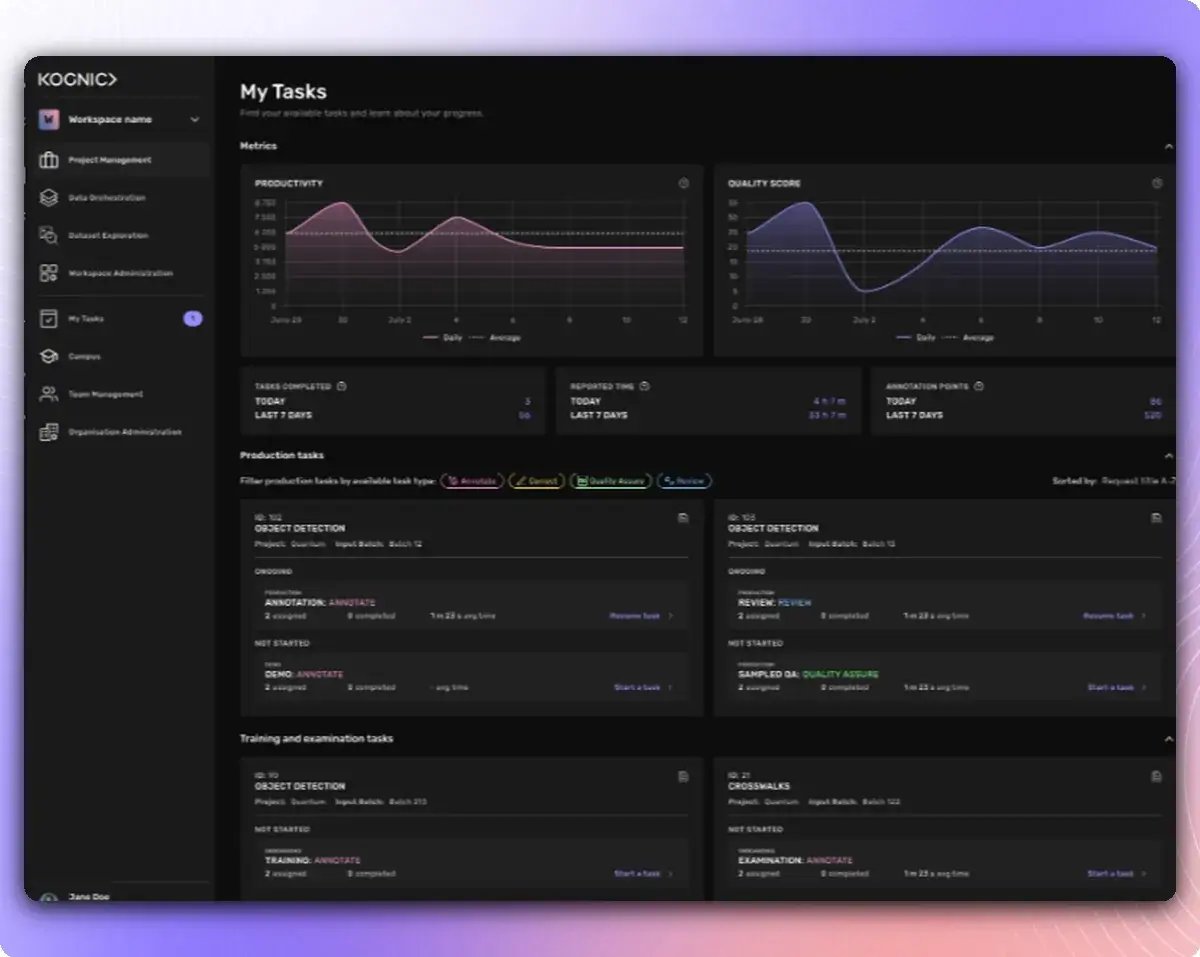
The metrics section at the top of My Tasks now shows a much richer view of how your work is going. Two graphs replace the old Tasks per day and Shapes/AP charts: Productivity (your productivity ratio over the last 14 days) and Quality (your quality alignment score, sourced from the same data as Campus). Stat cards for Tasks completed, Reported time, and Annotation points show today and this week side by side.
Annotators now get a clearer picture of both productivity and quality at a glance, without needing to navigate to Campus.
Available in: My Tasks page · Docs
Project Metrics: Quality KPIs and Trend Charts
The Project → Metrics page in Project Management now combines productivity and quality in one view. New Quality KPI cards surface Quality Review and Expert Verification scores for the past 14 days, with precision/recall/accuracy on hover. New trend charts cover QA Overhead Ratio over time and Active Users per Week with weekday breakdown. The user breakdown also got a cleanup: 7-day rolling window, weekly productivity trends, date-range headers on hover.
Project managers can now see how a project is tracking, identify where to intervene, and make decisions without switching between tools.
Available in: Project Management → Project → Metrics tab · Docs
New Client QA phase for Kognic Standard Workflow
A new Client QA phase is now available for requests using the Kognic Standard Workflow. It is a structured quality review process: the client samples and reviews annotations, provides feedback, and submits a quality verdict (Accept or Reject). If rejected, client and producer align on the assessment before rework starts. Acceptance rates and request verdicts are tracked in the platform, giving both sides a clear quality picture over time.
This is a separate phase from the existing Client QA phase, which will soon be renamed Client Sampled Review. The new phase is purpose-built, with defined stages, shared metrics, and a clear end-state.
Available in: Kognic Standard Workflow (per-request opt-in) · Docs
Speaking your language
Japanese support in the platform
Japanese now joins English and Chinese as a language option in the main platform. The Drawing tool follows on the same path with partial Japanese coverage matching what's available in Chinese, with more translations rolling in as needs come up.
Available in: Main platform language settings
Japanese API Guide documentation
The full API Guide documentation has been translated to Japanese. Toggle the language in the docs tab to switch.
Available in: docs.kognic.com/api-guide/ja
Project setup is now more flexible
Multiple regions of interest
Annotation Instructions now supports more than one region of interest. The first region remains blocking; additional regions are visual references. Useful when projects need annotators to focus across multiple areas of a scene.
Available in: Annotation Instructions · Docs
Update input type on requests
Input type restriction can now be changed in request settings, as long as no inputs have been added to the request yet. Previously this required database access or a full request rebuild if the wrong type was set at creation.
Available in: Project Management → Request settings
Safety checks in Pose Calculator
Pose calculation now refuses to run when frame intervals are inconsistent across a sequence. If original poses exist, the calculator flags calculated poses that diverge too far from them. Optimization runs that hit the maximum iteration limit are no longer trusted as valid output.
These checks reduce the risk of bad pose data slipping into projects.
Available in: Pose Calculator (Project Settings preprocessing step)
Coming up in May
The drawing tool gets a productivity sweep: a new 3D Slice Tool for cutting multiple lines and lanes in one stroke, an Object Camera Ruler for Z-axis height reference, smarter polygon classification, and the ability to hide multi-sensor cuboids. Currently rolling out with production release scheduled for the first weeks of May.
Questions? Reach out to your account team or contact us at support@kognic.com.
Kognic Platform Update | February & March 2026
Published 31 March 2026
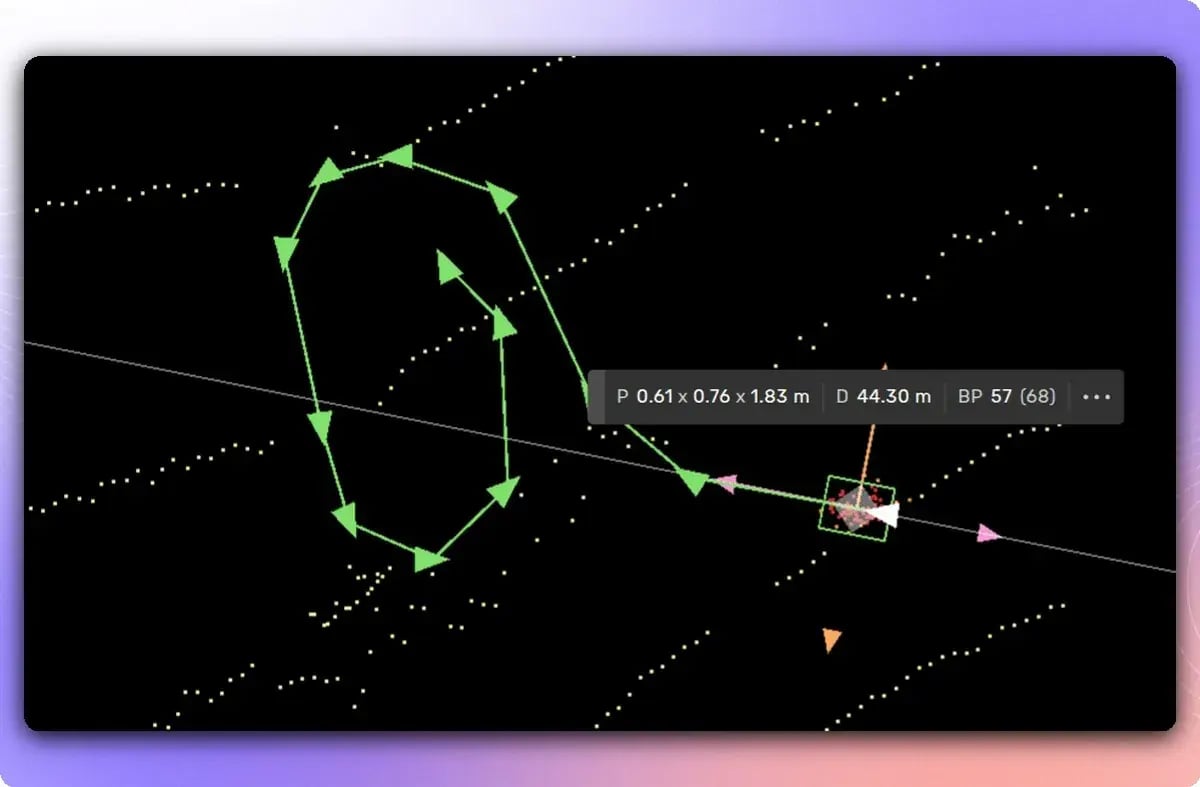
Two months of releases in one update. The annotation tool got faster and smarter, Operational Overview became a real command center, and several workflow features landed that save repetitive setup time.
Annotation Tools
Pedestrian Tool
Annotating pedestrians in sequences just got dramatically faster. Place cylinders around target points using quick-paint tracking, press Enter, and the system converts your marked points into cuboids with smooth trajectory-aligned heading, unified or varying size, and ground-plane alignment. No precision placement needed.
Available in: Drawing tool (3D box tasks with pedestrians/VRUs in sequence)
Occlusion Automation
The platform now estimates occlusion levels for objects and shows indicators in the right-side menu and expanded camera drawer. Instead of guessing the occlusion property, you get an informed starting point. Fewer judgment calls, more consistent results.
Available in: Drawing tool (2D/3D box tasks with occlusion properties)
Action Assist: 2D/3D Fusion (Single Frame)
Action Assist now guides you through the optimal fusion workflow: annotate the 3D box first, then draw the object in 2D in each source where the 3D box is visible. The guided sequence reduces context-switching and speeds up single-frame fusion annotations.
Available in: Drawing tool (2D/3D fusion tasks)
Plus: Align Line to Ground snaps 3D lines to the ground surface with a single action, useful for road lines drawn in bird's eye view. 2D bounding box auto complete makes prelabel-assisted drawing more intuitive. And all color palettes (classes, properties, sensors) have been updated for better contrast and color-blind accessibility.
Operational Overview
The Operational Overview received a major upgrade across several releases, turning it into a proper at-a-glance command center.
Productivity and Quality KPI Cards
The Request Summary page now shows two compact KPI cards. The Productivity card displays the productivity ratio with a recent-period trend (e.g. "Past 14 days: 108%") and links directly to Productivity Insights. The Quality Estimation card shows the overall quality score, color-coded by performance (green above 95%, red below 90%), with a breakdown on hover.
Alignment analytics are now available to all request producers, not just internal users.
Available in: Request Summary page
Productivity and Quality in the Overview Table
Every request in the Operational Overview now shows its productivity percentage and quality estimation score inline. Recent-period productivity (e.g. "Past 3 days: 117%") appears as a subtitle, so you can spot trends without clicking through. Quality scores are color-coded the same way as the KPI cards.
Available in: Operational Overview
Quality Score in Quality Alignment
Quality Alignment pages now include a Quality Score column: the average of precision, recall, geometry accuracy, and property accuracy. A new metric selector dropdown lets you switch between Quality Score, Alignment Score, and individual sub-metrics in the trend graph.
Available in: Team Management > Quality Alignment, Campus > Productivity Metrics
Plus: The Overview table also gained a "not started" input count per project and a "Go to project" shortcut.
Workflow & Platform
Copy Workforce Between Requests
You can now copy a workforce setup from one request to another. "Copy from" populates the current request with another request's workforce. "Copy to" replicates it to one or more targets. Copied members keep their task allocation type and workflow stages. Configure once, replicate across requests.
Available in: Request detail page, Workforce tab
Scene Data Quality Checks
Projects can now require scenes to pass data quality checks before inputs are created. The first available check is Ego Pose Validation, catching missing poses, duplicate frame IDs, and velocity anomalies. Quality issues are surfaced at both the scene level (Data Orchestration) and input level (Requests).
Available in: Project Settings (enable checks), Request Settings (opt out per request)
Notification Inbox
A centralized notification inbox is now available in both the annotation tool and main app. A dot on the inbox icon indicates unread notifications. Open the panel to browse, mark all as read, or filter to unread only.
Available in: Annotation app (top menu bar) and main app (navigation header)
Processing Error Monitoring
A new Processing Errors tab surfaces failed or missing post-processing for judgements and exports. You can see which steps failed, retry them directly, and filter by request and state.
Available in: Project Management (new tab, next to Knowledge Base)
Plus: A new Client QA Contributor role lets third-party review organizations support request owners with quality assurance, with scoped access to delivery and review phases.
Coming Up
Kognic will be at VivaTech Paris (June 16-18) and AutoAI USA in San Francisco (June 29-30). Stop by if you're attending.
Questions? Reach out to your account team or contact us
Kognic Platform Update: Quality Alignment, Programmatic Checks & Annotation Tools | January 2026
Published 28 January 2026
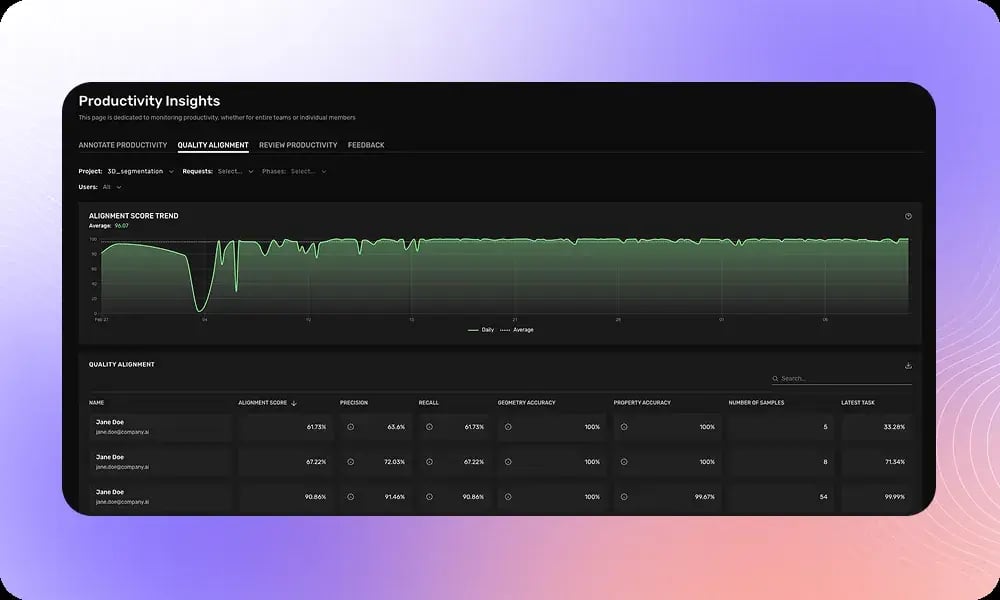
We're kicking off 2026 with a batch of updates focused on quality visibility, automated error detection, and annotation workflow improvements. Here's what's new for teams working on autonomous vehicle training data.
Quality Alignment Gets More Powerful
Quality Alignment now lets you drill down from aggregated user metrics to individual assignments. This makes it easier to:
- Identify which specific tasks are driving quality trends
- Provide targeted feedback to annotators
- Investigate issues at a granular level
We've also added the ability to search users by email address in the user dropdown.
Where to find it: Team Management → Productivity Insights → Quality Alignment
3D Segmentation Support
Quality Alignment now supports 3D Semantic Segmentation and 3D Instance Segmentation. We're rolling this out across projects—contact your account team if you'd like historical data backfilled.
Quality Estimations for Requests
A new Alignment Analytics view displays quality metrics at the request level, including estimated quality for unreviewed assignments. Use this to make data-driven decisions about sampling rates and review allocation.
Programmatic Checks: Catch More Errors Automatically
We've expanded our programmatic checks to help you catch annotation errors before delivery
Cube3D Scale Ratios
New checks validate the relationship between width, height, and length of 3D cuboids:
-
cube3d_length_to_height_ratiocube3d_length_to_width_ratiocube3d_width_to_height_ratio
For example, you can automatically flag when a vehicle annotation is wider than it is long—something that's almost always an error.
Polygon Area Validation
Check that polygons and multi-polygons fall within expected size ranges:
-
polygon2d_area— minimum/maximum area in pixels²multipolygon2d_area— for multi-polygon annotations
Scene Property Checks
Validate scene-level properties like weather and lighting conditions:
properties_str.weather = "rainy"
properties_str.weather ALL IN ("rainy", "sunny")
Per-Camera Evaluation
Run checks per camera instead of across all cameras combined—essential for multi-camera setups where an object may be occluded in one view but visible in another.
Annotation Tool Updates
Split Polygon to New Object
Quickly fix cases where multiple objects were incorrectly annotated as one. Right-click any polygon in a multi-polygon and select "Split to new object."
Prevent Editing in Review Tasks
A new request setting restricts reviewers to feedback only, preventing accidental edits during quality review phases.
More Improvements
- Overwrite existing properties
- Remove redundant points with one click
- Lane connection customization
- Project 3D lines to 2D
We'll be at Tech.AD Europe in Berlin, March 23-24. Stop by our booth to see these features in action.
Questions? Reach out to your account team or contact us at support@kognic.com.
December spotlight - New features to increase annotation productivity
Published 19 December 2025
Hello from Kognic!
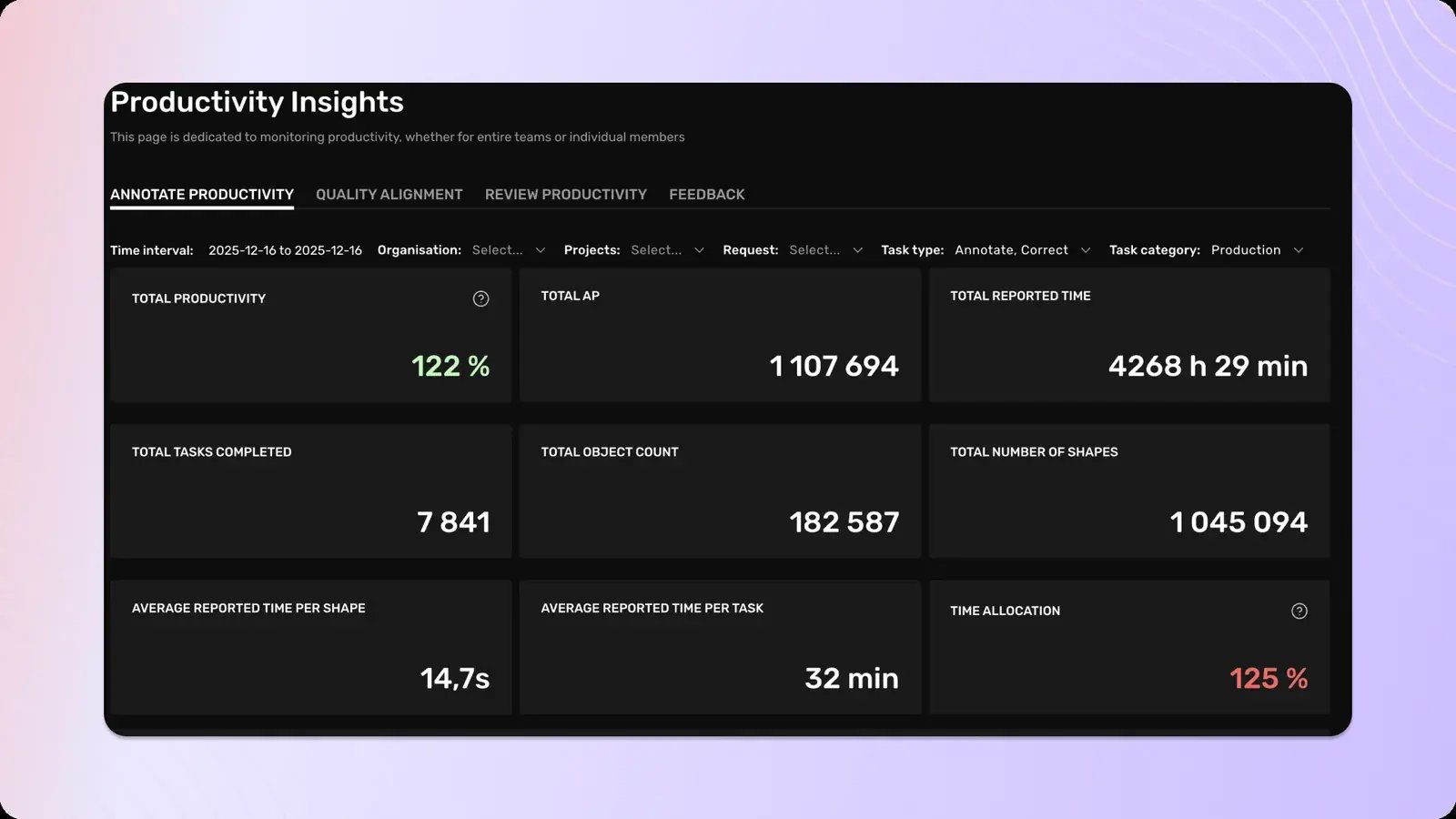
As we wrap up 2025, we're have some new features that will help you kick off the new year even better. This final newsletter of the year highlights three updates, all designed to give you deeper visibility into your annotation work and quality performance.
Thank you for being part of the Kognic community this year. Here's to an even more productive 2026!
📊 New Productivity Metrics
We've unveiled three powerful new KPIs in Productivity Insights that give you deeper visibility into your annotation work:
- Average Reported Time per Shape – Track efficiency down to the second
- Average Reported Time per Task – See task duration in an easy-to-read format (like "2h 15m")
- Time Allocation – Understand how much of your reported time is spent actively annotating vs. other activities
These metrics are now available to everyone with access to Productivity Insights, helping you optimize performance and make data-driven decisions. 💯
Quality Alignment Metrics improvements
Quality Alignment metrics are now available directly in your Standard Workflow phases (Quality Review and Expert Verification). You can now view per-user performance trends including alignment scores, precision, recall, geometry accuracy, and property accuracy, all without leaving your workflow.
What you can do:
- Toggle between "This phase" and "Entire project" views
- Filter by specific users and check sample counts
- See alignment scores right where you set sampling levels
Quality Managers and team leads can now spot alignment issues instantly, coach team members with data-driven insights, and adjust sampling levels in one place.
Learn more in our Quality Alignment documentation.
We've also expanded our Quality Alignment Metrics to give individual annotators and team managers insights into annotation quality.
What you'll get:
- Real-time tracking of how well your work aligns with quality standards
- Four key performance dimensions: geometry accuracy, property accuracy, precision, and recall
- Personal insights through Campus > My Productivity
- Team-level analytics in Team Management > Productivity Insights
The feature automatically calculates metrics from existing review data (no setup required).
Learn more in our Quality Alignment documentation.
Meet Kognic at upcoming events
March 22 - 24, 2026 | Titanic Chaussee Hotel, Berlin
Kognic Product Updates – October/November 2025
Published 12 November 2025
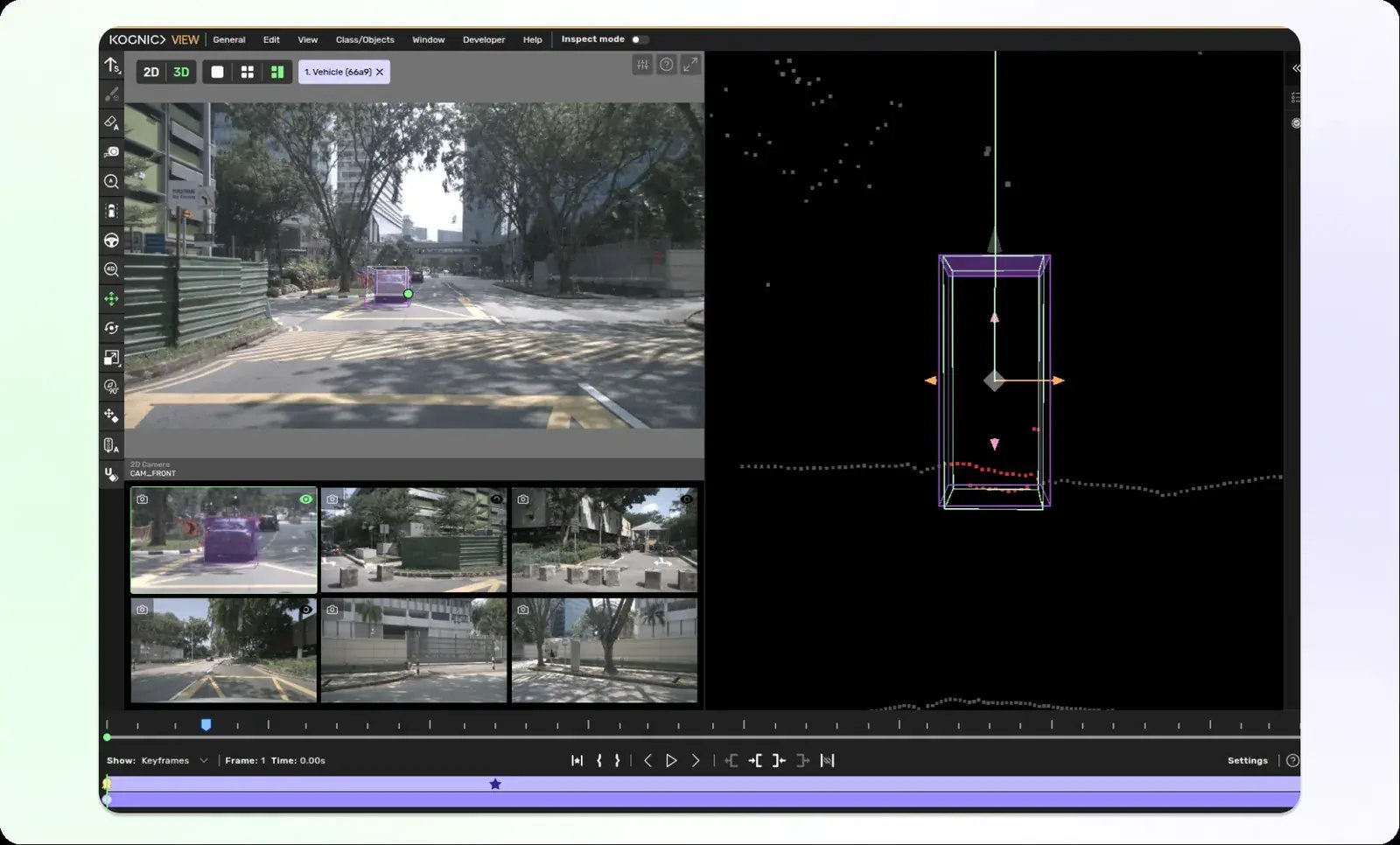
Hello from Kognic!
We've been busy this fall! As always, we have released features to make your annotation workflows faster, more intuitive, and more powerful. From the new Split View for better 3D visualization to Videobar 3.0 with consolidated controls, these updates help us deliver on our promise: to get you more data for your budget.
Let's dive into the updates 👇
Split View for better visualisation 🪓
Split View is a new viewing mode that makes working with 3D scenes more efficient. This update divides your workspace into two panels, allowing you to see more 2D context alongside your 3D scene. Perfect for when you need that extra visual reference while annotating or reviewing.
The update also brings a new left-side toolbar that works seamlessly with both the existing grid view and the new split view. We've simplified the experience by replacing the old grid view shortcut (G) with a new shortcut (V) that lets you cycle through all three view modes effortlessly.
Videobar 3.0 - Better controls and new features 📽️
Our Videobar has evolved over the years, and now it’s time for version 3.0. This update consolidates controls and adds new features to make video annotation more intuitive and efficient.
Key Updates:
- Redesigned Layout: The video bar mode dropdown has moved to the left side, and the "Show best frame" button is now an icon alongside other video bar controls
- New Settings Window: Access all your video bar settings in one convenient location on the right side, including:
- Toggle between frame numbers and timestamps
- Manually edit frame or time values
- Playback settings (moved from the top bar menu)
- Zoom functionality (relocated from the bottom of the video bar)
- Mark Frames Feature: Mark frame ranges using Mark In and Mark Out commands, then perform batch actions such as:
- Setting properties across multiple frames with Quick-properties
- Toggling frame visibility
This update brings together scattered settings into one place, and delivers features you've been requesting. As one of our most-used components, the videobar now offers a more intuitive experience with fewer unexpected behaviors. That’s a win in our book 🚀
Improved Line and Polyline Simplification
We've upgraded our line and polyline simplification feature to make your annotation workflow smoother. Instead of the previous abstract "granularity" scale, you can now directly specify exactly how many points you want in your simplified line.
This makes it faster and easier to simplify complex lines while maintaining their shape. Perfect for your 2D and 3D line and lane annotations!
Note: The slider may occasionally skip certain point counts (like jumping from 17 to 15 points) because our simplification algorithm maintains specific levels of detail to preserve shape accuracy.
Learn more here: 3D Line/Lane Simplification and 2D Polyline Simplification
Quality Alignment Metrics 📊
There is a new way to track and improve annotator performance: Quality Alignment Metrics. This feature measures how well annotator work aligns with quality standards across four key dimensions: geometry accuracy, property accuracy, precision, and recall.
Team managers and project administrators now have data-driven insights to identify training needs, track improvement over time, and maintain consistent quality standards. Metrics are automatically calculated from judgment edits during the review process, showing exactly where annotators excel and where they need support.
Learn more in our documentation
Copy and paste properties ⚡
Speed up your annotation workflow with our new copy and paste properties feature! Now you can quickly copy properties from one object and paste them to others. Perfect for repetitive tasks like lane marking annotation.
Three powerful operations:
- Copy Properties from objects with set properties (
shift+ctrl+c) - Paste Properties to objects without properties (
ctrl+v) - Duplicate Properties automatically from similar nearby objects
Instead of manually setting properties for each of 10-20 lane markings, simply copy once and paste to all similar objects, saving time and reducing repetitive work.
Learn more in our documentation
Custom Shortcuts for 3D Line and Lane Tools ⌨️
You can now customize shortcuts for three commonly used 3D line and lane operations: Align node to ground, Align all nodes to ground, and Reverse line direction. This update makes working with 3D lanes and lines faster by letting you create shortcuts that fit your workflow.
Learn more:
Meet Kognic at upcoming events
December 08 – 09, 2025 | Michigan, USA
Kognic Product Updates – September 2025
Published 29 September 2025

Hello from Kognic!
We're excited to unveil our refreshed brand identity!
At Kognic, we remain dedicated to our core mission: helping humans train machines that move.
Our refreshed brand highlights our position as the price leader in data annotation for autonomy, delivering the most data for your budget through our unique combination of:
- People: Domain experts specialized in autonomy data, with a flexible, ethical workforce
- Platform: Automation-first approach with optimized experiences for data review
- Process: Scalable workflows coordinating hundreds of annotators with rigorous quality assurance
Everything that moves is becoming autonomous, and we're focused entirely on helping make that happen safely and efficiently.
Same mission, same team, same (but ever-improving) platform.
We hope you like it! And here are the updates for this month:
🔄 Move Objects Between Geometry Collections
We've added a new feature to make your workflow smoother! You can now easily move objects between geometry collections using cut and paste functionality. This means no more redrawing entire objects when you need to make corrections.
Simply right-click an object in the list, select 'Cut', then paste it into another collection.
📊 Enhanced Reviewer Drill-down
We've improved the reviewer drill-down view to display time budgets per task and added summary cards for all tasks in selected intervals. You can now also switch between reviewers without leaving the view.
To try it out, navigate to Team Management > Productivity Insight > Review Productivity and click on any user name.
⏱️ Simplified Time Metrics in Productivity Insights
We've streamlined how time metrics are presented in productivity insights. You'll now see "Reported time" and "Time spent annotating" columns instead of "Working time," making the data easier to interpret. What you see in the table is exactly what you get when exporting the data.
👥 New User Productivity Overview
The new overview tab on team member pages gives you at-a-glance information about how productivity and quality are trending over time. This helps managers track performance changes and gives users visibility into the metrics we're monitoring.
Access it through Team Management > Productivity Insight > Annotate Productivity (click on a username) or through Campus > User Productivity > Overview for your personal stats.
Meet Kognic at upcoming events
November 12, 2025 | Frankfurt
Kognic Product Updates – August 2025
Published 29 August 2025
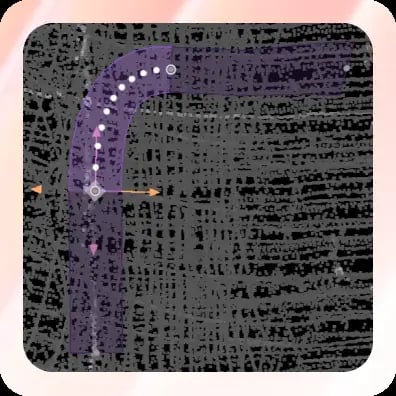
We've been busy building tools that make your workflows smoother, faster, and more collaborative. Here are the latest updates now available in Kognic:
🔄 One-click sensor switching
⚡ Quick-Properties with keyboard shortcuts
🛣️ Enhanced Lane Connections
🔗 Shareable Productivity Insights
🎛️ New Radial Settings Menu
🔄 Change Primary Sensor with One Click
Working with multi-sensor data just got easier. You can now instantly switch to the suggested optimal sensor when:
- Your current primary sensor has insufficient data points
- Another sensor provides significantly better coverage
This feature is integrated directly into our drawing tool and available for all users working with 3D boxes in multi-sensor environments.
⚡ Quick-Properties: A Faster Way to Set Object Properties
Say goodbye to drop-down fatigue. Quick-Properties introduces a faster, more intuitive way to set object properties:
- Select options instantly using
1–9keys or a single click - Open with
ctrl+q - Search and filter when working with many property options
Perfect for property-rich objects in the drawing tool.
🛣️ Lane Connections
We’ve expanded the Lane Connection tool!
- You can now connect existing lane objects directly, not just with lines
- Makes working with 3D intersections much simpler
🔗 Shareable Links for Productivity Insights
Collaboration just got easier. You can now copy and share links to Productivity Insights with filters applied (date range, organisation, project, request).
-
Available now to all users
-
Works across Team Management → Productivity Insights and Teams
🎛️ Radial Settings Menu in 3D
We’re testing a new way to speed up your 3D workflow with a radial menu:
- Open the menu with the shortcut
o - Hover to preview settings, click to confirm
- Faster access to commonly changed options
See you next month for more exciting product updates!
Kognic Product Updates - June 2025
Published 30 June 2025
As summer heats up, we're excited to introduce some cool new features that will make your annotation work effortless.
This month we cover:
- Relative Keyframe: Instantly place boxes at the same relative spot across keyframes for faster multi-object annotation.
- Custom Quality Metrics: Choose how quality is measured for your projects and set your own thresholds.
- Working Time Reminder: Get auto-prompts to start your timer for more accurate time tracking.
Relative Keyframe
When annotating objects with fixed relationships, our relative keyframe feature automatically places boxes at the same relative position across all keyframes.
Simply right-click any object to access this feature in the context menu.
Benefits
- Significantly reduces annotation time for common multi-object scenarios
- Maintains consistent relative positioning automatically
- Improves accuracy when tracking related objects
For detailed guidance, visit our documentation.
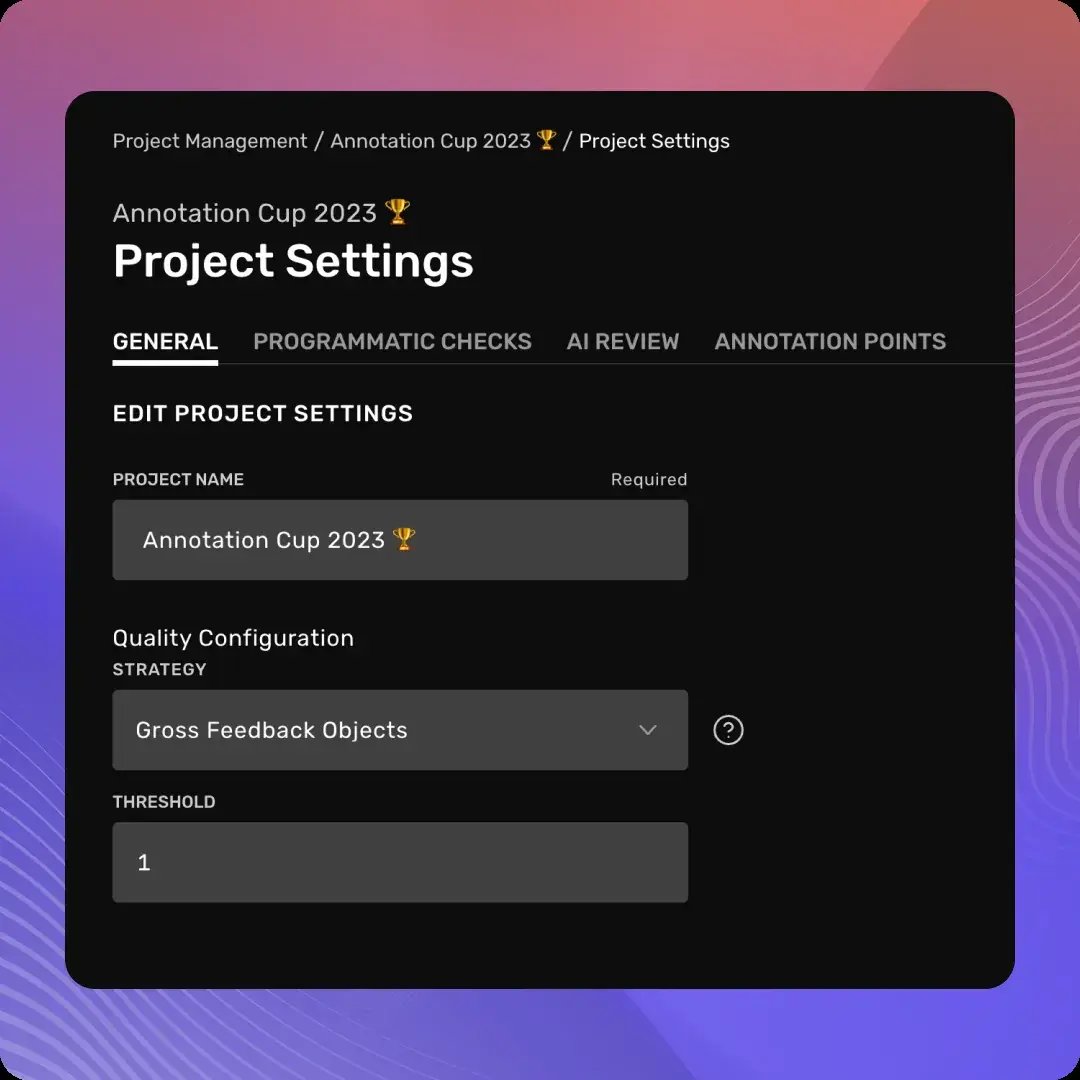
Quality Strategies for accurate Project metrics
Now you can choose how quality is calculated for your projects and set thresholds that align with your specific needs.
Previously, we used a one-size-fits-all approach to quality calculation. Based on your feedback, we've developed multiple strategies to provide more meaningful and relevant quality assessments:
- Gross Feedback Objects: Calculates quality based on feedback items per object (our classic method)
- Faulty Objects: Measures the percentage of objects with feedback against the total objects
- Faulty Shapes: Evaluates the percentage of shapes with feedback against the total shapes
You can now set custom thresholds between 0 and 1 to define what constitutes "passing" quality for your projects.
Working time reminder
When you open a task, Kognic automatically checks if your working timer is active. If not, a friendly reminder dialogue appears, prompting you to start timing your work.
This update ensures more precise time reporting across projects, which is particularly beneficial for users who directly access the annotation app.
Accurate time tracking means better resource allocation and project planning. For more details, visit our time reporting documentation.
See you next month for more exciting product updates!
Kognic Product Updates - May 2025
Published 28 May 2025
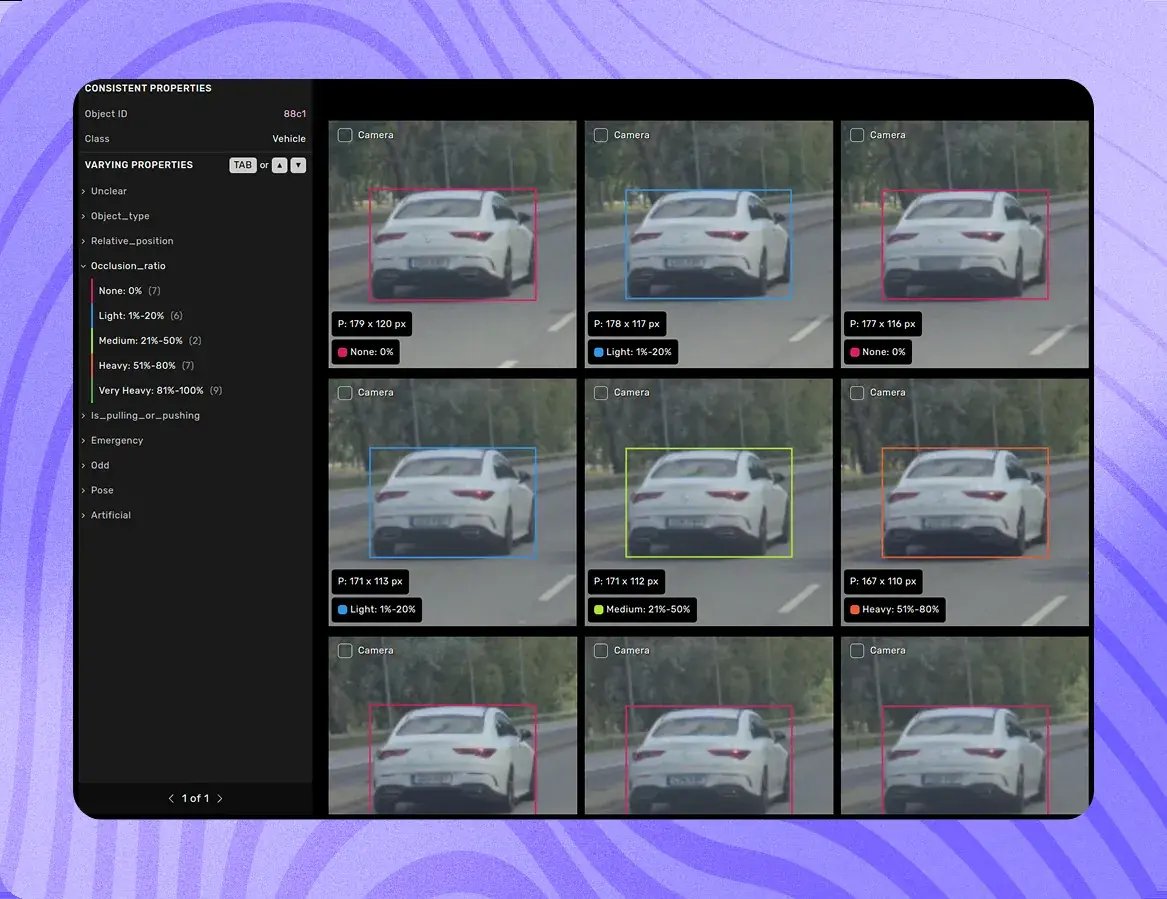
Welcome to our May newsletter! We're excited to share several powerful updates to our annotation platform that will enhance your workflow and productivity, including:
- Grid View for 2D bounding box sequences
- Reference Frame tracking for size unification
- Automatic heading alignment to trajectories
- Enhanced custom check options
- Automated occlusion review system
Grid View for 2D
You can now use the grid view for 2D bounding box sequences. The grid view can be used for:
- Easy property value overview with "Property review"-style highlights
- Progress tracking for inspected objects
- Bulk feedback and property changes across multiple frames
Reference Frame
You can now track which frame was used as reference when using the "unify size" feature. The system automatically marks the first frame where you draw an object as the reference frame.
Align Heading to Trajectory
This new feature automatically adjusts object orientation to follow movement direction throughout its trajectory. It's particularly useful for:
-
Reducing inconsistencies in moving object annotation
-
Improving annotation quality for pedestrians
-
Smoothing out auto-generated boxes'
New Custom Check Options
We've expanded our custom checks capabilities with three new options:
-
2D geometries for height and area measurements
-
Intersection validation between linked objects
-
Property existence verification using the new EXISTS keyword
Automatic Review of Occlusion
Our new automated review system for occlusion properties can help reduce manual review work by up to 50%. The system indicates when automation agrees with annotated values, allowing reviewers to focus their attention where it's most needed.
Kognic Product Updates - April 2025
Published 30 April 2025
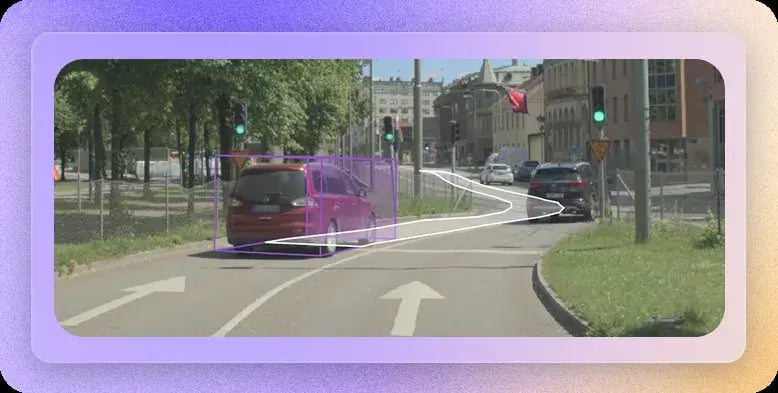
Welcome to our April spotlight. We've got an exciting roundup of new features and improvements this month!
From visualizing object movements in new ways to improving your search capabilities, we're bringing you features that make your work smoother. Plus, we're adding RGB pointclouds for enhanced visualization and a brand new Quality Tab to help you track and improve quality.
More details below 👇
Trajectory projections to visualize object movement
You can now view 2D projections of your 3D box trajectories, making it easier than ever to understand object movement patterns and validate your annotations.
Simply navigate to View → Projections → Selected Trajectory (2D) in the top menu to see how your selected object moves across the scene. This feature is particularly valuable for users working with 3D box sequences, helping you spot potential trajectory errors quickly using the 2D camera view.
Want to learn more? Check out our detailed documentation.
RGB Pointclouds
You now have the option to visualize point cloud data with RGB colors, making it especially valuable when working with structure from motion data derived from images.
Simply open any scene or task containing RGB data in the drawing tool, and you'll notice a new point cloud coloring option.
For detailed information about supported file formats and implementation, check out our documentation.
Omnibar to search Kognic in seconds
Our popular Omnibar is now available to all users with management access! This search tool allows you to quickly find and navigate to Projects, Requests, Scenes, and Users within your workspace.
The Omnibar streamlines workflow for power users by providing instant access to the resources you need. Whether you're a project manager, team lead, or workspace admin, you can now enjoy faster navigation through search.
Quality Tab on the User Productivity page
This addition helps both annotators and quality managers analyze errors in detail, with comprehensive breakdowns by type, feedback logs, and timestamps.
The new tab provides clear visibility into error patterns, feedback history, and improvement opportunities. Annotators can now easily identify their most common error types, while Quality Managers get valuable insights for targeted coaching and progress tracking.
Check out our detailed guide in the documentation.
Kognic Product Updates - March 2025
Published 27 March 2025
Welcome to our March update!
We're excited to share some major new features and improvements that will enhance your experience with Kognic. From cloud integrations to advanced scene navigation, we've been hard at work making our platform even more powerful and user-friendly.
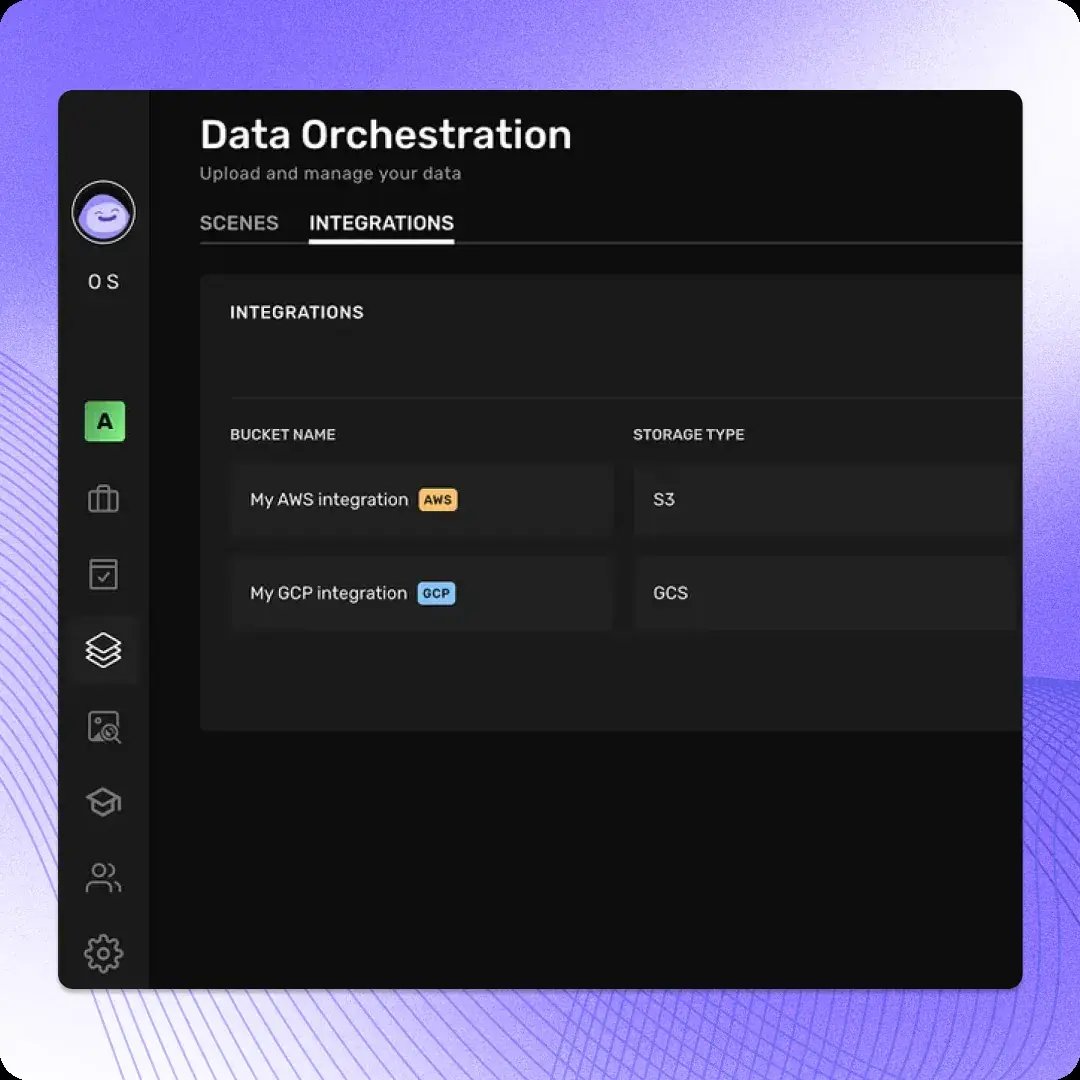
Cloud Bucket Integration
You can now set up integrations with your own cloud bucket! This new capability will enable creating scenes using cloud resources instead of locally.
Key benefits include:
- Direct scene uploads from your cloud environment, eliminating the need for local downloads
- On-demand scene importing with indexed scenes that can be imported to Kognic cloud when needed
Availability:
- Available now through the new Integrations tab in Data Orchestration
- Access restricted to Workspace Developer or Admin roles
For more details, check out our documentation.
🗄️ Camera Drawer 2.0: Enhanced Scene Navigation
We're excited to introduce Camera Drawer 2.0, featuring significant improvements to help you navigate and understand scenes better. Key enhancements include:
- A sleek redesigned interface with expanded camera drawer functionality
- Two flexible viewing options:
- Miniature drawer view
- Interactive field of view display
- Smart camera icons for 3D cuboids showing:
- Star icon: Best object visibility
- Eye icon: Object visibility status
- Unify icon: 2D/3D annotation status
📋 Enhanced object labels
We have redesigned the object labeling system for 2D and 3D views that puts more control in your hands. The new customizable interface offers:
- Flexible label placement - pin or move labels to your preferred location
- Toggle shape measurements on/off as needed
- Customizable properties - select up to 3 key properties to display
- Quick label hiding with simple right-click access to show/hide controls
This update aims to reduce visual clutter and provide better flexibility when working with labeled objects.
🌈 Enhanced 3D Segmentation
We have introduced a powerful upgrade to our 3D segmentation capabilities! The new sequence 2.0 feature allows you to classify points across entire sequences in an aggregated view.
Key highlights:
- Toggle between aggregated and single-frame views with a simple Alt+A shortcut
- Perfect for different use cases:
- Single frame view for dynamic objects
- Aggregated view for stationary objects
This feature is automatically enabled for 3D segmentation tasks with ego vehicle poses. The update is specifically designed to boost efficiency in sequence-based segmentation workflows, making it an invaluable tool for users working with 3D segmentation in sequences.
Kognic Product Updates - February 2025
Published 28 February 2025

It’s time again to share some updates to enhance your productivity.
This time we’ve introduced:
- Expanded co-pilot capabilities with new auto-label support
- Improved dataset exploration with zoom control
- One productivity KPI to rule them all 💍
We're also proud to share our commitment to fair labor practices and living wages.
Unlocking (even) more productivity with wider co-pilot support
In Kognic, your auto-labels are used as prompts for powerful automation features, creating a guided workflow that reduces annotation time drastically.
We're now excited to announce expanded auto-label support for:
- Relationship and geometry collections
- 3D Lanes
- 3D Points
These features are available now. Learn more about our co-pilot capabilities or contact your Kognic representative for support.
Zoom control for Dataset Exploration
You can now adjust the zoom when exploring your datasets! This makes it easier to identify small objects or those at a distance. Now you can examine images with greater precision and flexibility, ensuring no detail goes unnoticed.
The feature is available for all users with Dataset Exploration access.
New total productivity insights
“What gets measured, gets managed”
Now you can instantly see total productivity for your selected filters in the annotator productivity dashboard.
This new KPI card eliminates the need to manually aggregate data from individual annotator records, giving you immediate visibility into team performance. Whether you're tracking specific time periods, projects, or team members, you'll have the insights you need in a click.
This feature is available now for all users with Team Management access.
Our commitment to living wages and fair labor
At Kognic, fair labor practices and living wages aren't just policies - they're core values. We ensure every worker in our ecosystem receives fair compensation that supports a dignified life, with predictable payment schedules and reasonable working hours.
Our commitment extends throughout our supply chain, where we work closely with partners to maintain high ethical standards. This approach has proven beneficial for you too, leading to better productivity, quality, and stronger relationships.
Want to learn more? Read our detailed article on living wages and fair labor.
See you next month for more exciting updates around productivity and Kognic!
Unlocking (even) more productivity with wider co-pilot support
Published 20 February 2025
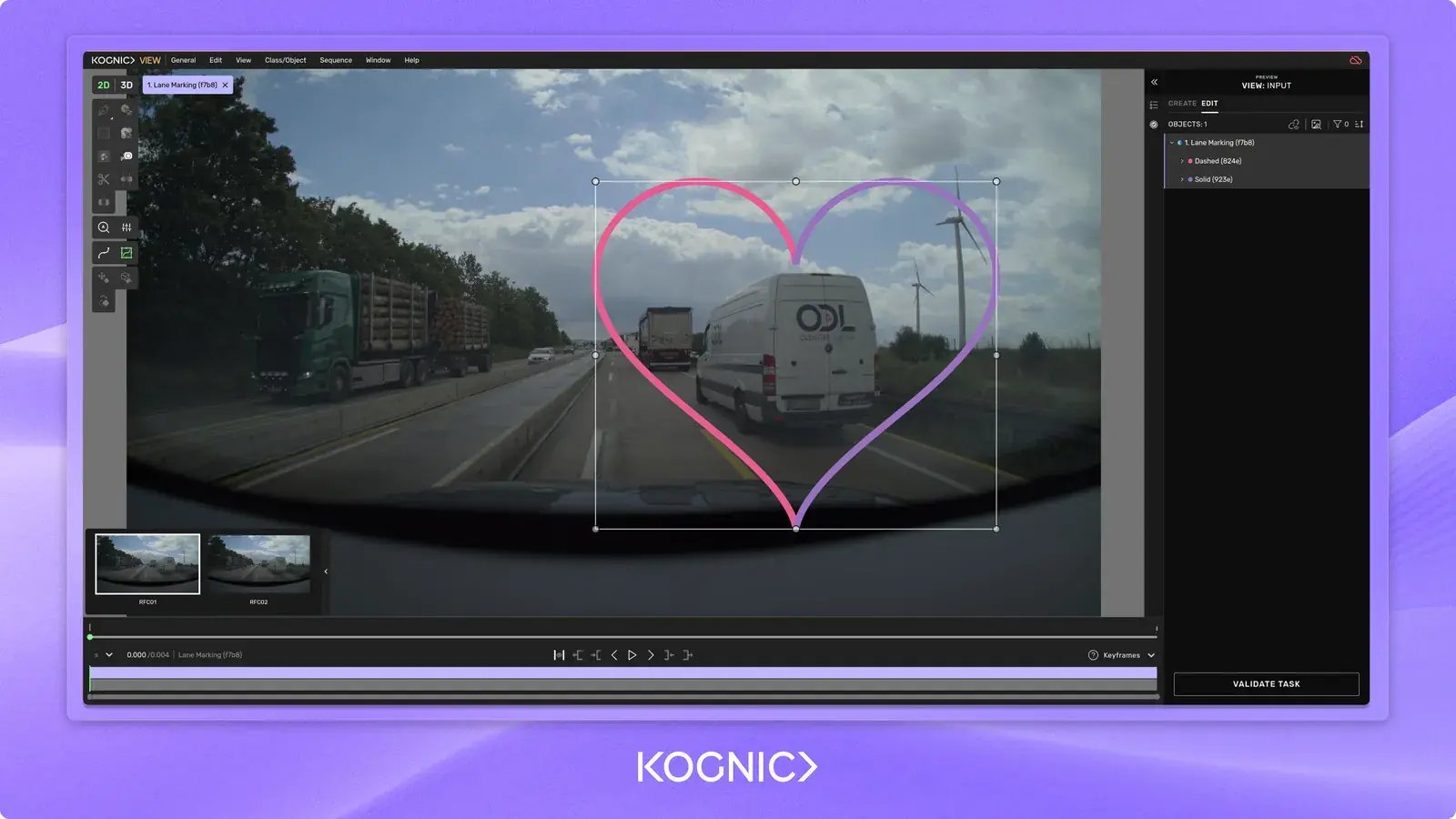
The Kognic co-pilot is designed to maximize the value of auto-labels while maintaining high-quality standards. Unlike traditional auto-labeling approaches of just importing and using the label as-is, our co-pilot leverages imported predictions as prompts for our automation features. This creates a guided workflow that significantly reduces annotation time.
The process works as follows:
- Import your auto-labels into Kognic
- Identify the highest impact frames
- Use auto-labels as guidance for creating objects
- Enable one-click fixes with auto-adjustments
- Interpolate changes across all frames
With this approach, we've achieved up to 68% reduction in annotation time compared to manual methods, while maintaining annotation quality through efficient human feedback where needed most. Now imagine this being applied across all projects.
We're excited to share expanded auto-label capabilities, including:
- Relationship and geometry collection: Now you can leverage auto-labels for relationships and geometry collections.
- 3D Lanes
- 3D Points
These new features are already available now. For questions or support, feel free to reach out to your Kognic contact.
Ready to accelerate your annotation workflows? Explore how Kognic’s platform combines AI assistance, 3D capabilities, and quality controls. Learn more about the Kognic platform →
Kognic Product Updates - January 2025
Published 31 January 2025
Productivity is our focus for 2025. We're enhancing our sensor-fusion annotation tool to help you achieve more - whether that means reducing costs or increasing output. In this newsletter, we're introducing several new features designed to make your platform experience more efficient:
- Annotation Productivity Analytics to measure and optimize team performance
- Enhanced Checker Apps to precisely identify annotation issues
- Property Review Filters to streamline review visualization and filtering
Improving efficiency with Annotation Productivity Analytics
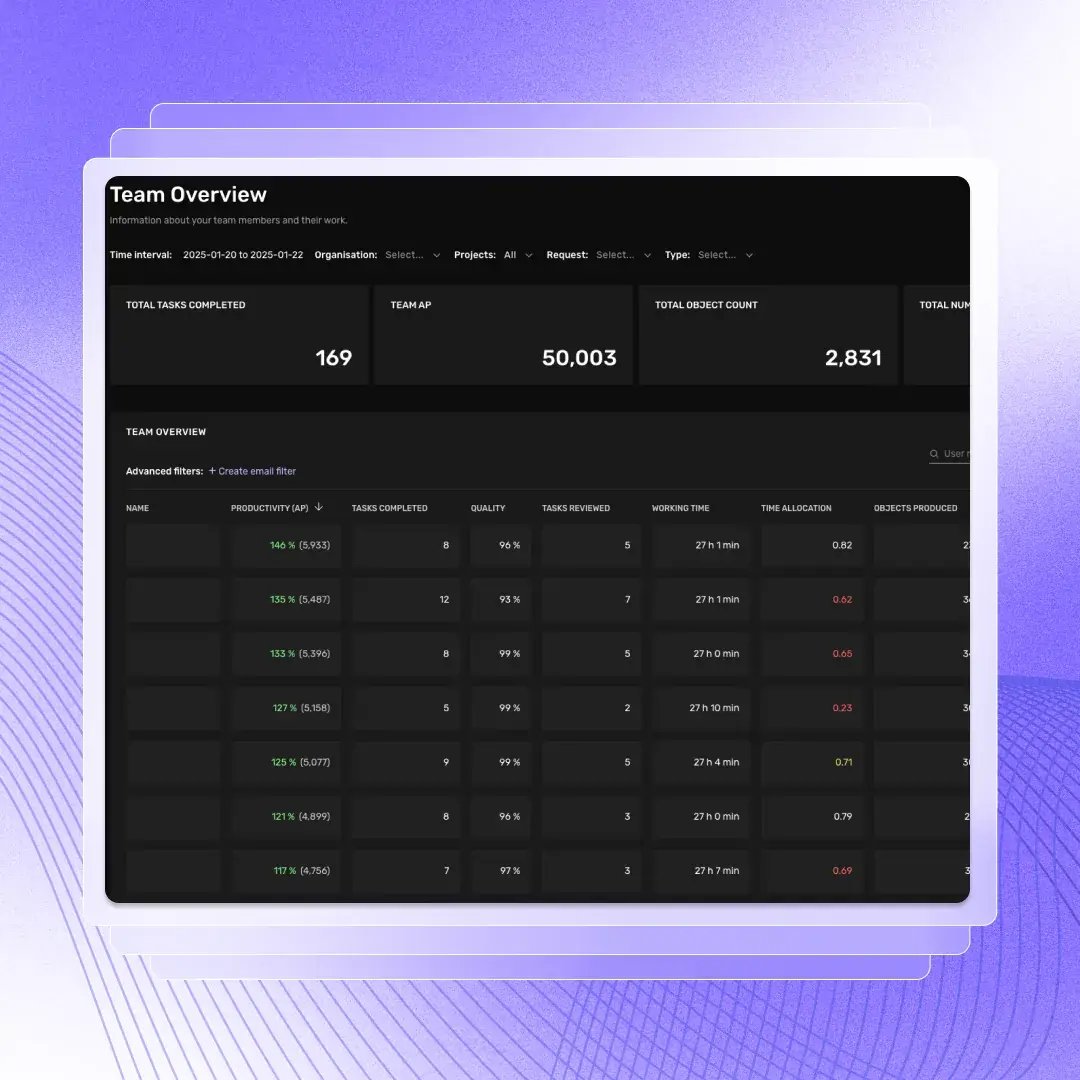
This new feature helps teams like yours to measure and optimize their annotation workflows with:
- Customizable point system for different annotation types
- Real-time team performance dashboard
- Quality-integrated productivity metrics
- Comprehensive team overview with 10-minute refresh intervals
Contact your customer success manager to enable this feature for your team. We'll guide you through the setup process and help you configure the system to match your specific needs.
Checker Apps: Pinpointing issues
We've upgraded our checker apps with new capabilities to make error more informative. The update introduces pin functionality that can specify exact locations of issues in both 2D and 3D environments. Plus, we've added support for validation messages that can now highlight multiple related objects simultaneously - perfect for catching issues like overlapping objects.
While this update primarily benefits checker developers for now, end users will soon experience improved error reporting and validation. The feature is ready to use in existing projects - you'll just need checker apps in place.
Property Review Filters
This tool allows you to quickly filter and visualize objects based on their classes and property values, giving you a clear overview of your annotations at a glance.
Key features include:
- Interactive filtering window for easy class and property selection
- Real-time highlighting of objects with specific properties
- Efficient keyboard navigation with tab and arrow keys
- Support for both 2D and 3D annotations
The feature will be released to production next week. It will be accessible to all users working on review and correction tasks, supporting a wide range of shapes including lines, polygons, boxes, and points in both 2D and 3D environments.
Continental's journey to faster, more flexible 3D ground truth with Kognic
AUMOVIO (then Continental), a global automotive technology leader, has transformed their 3D ground truth generation process using Kognic's annotation platform. In a recent success story, Continental details how they overcame challenges in Lidar pointcloud data annotation through our flexible platform and hybrid workforce model.
Key highlights from Continental's experience:
- Successful development of perception stack for customer demos
- Streamlined labeling task management
- Enhanced efficiency in 3D ground truth creation
Read the full story.
We're continuously working to improve your annotation experience and looking forward to sharing more updates with you soon.
Product Release: Annotation Productivity Analytics
Published 30 January 2025
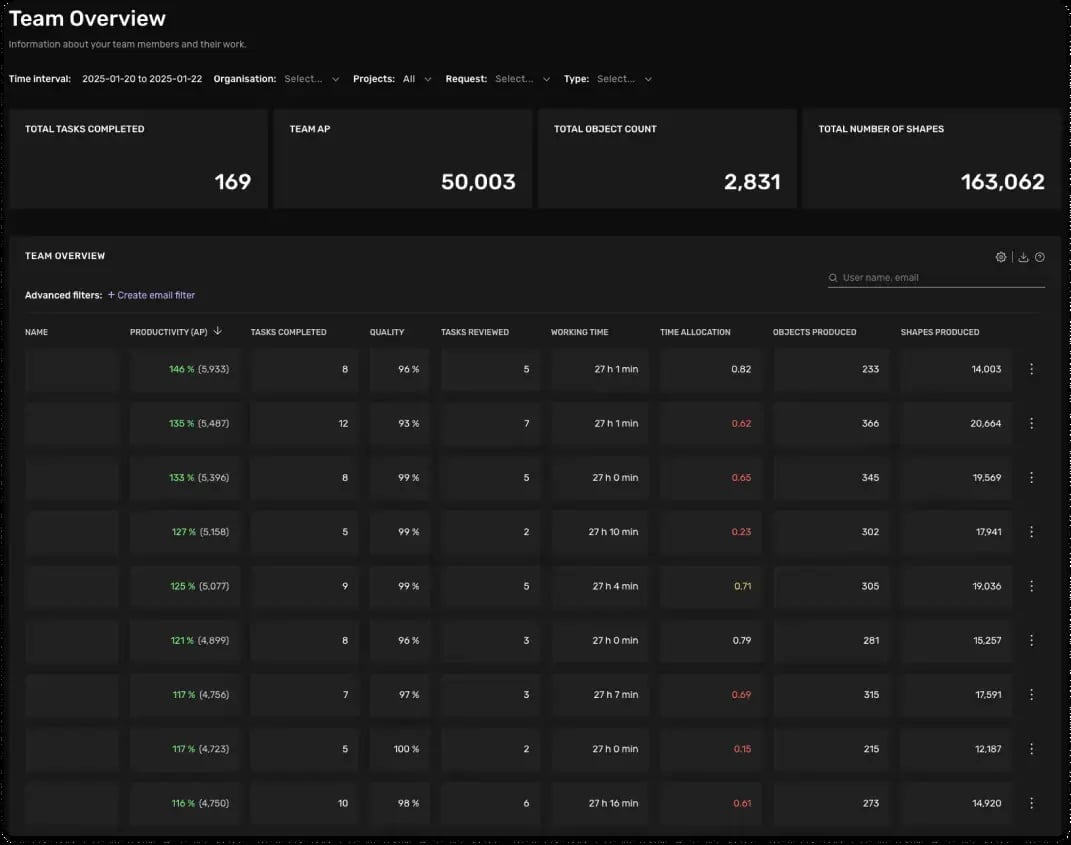
Building on our recently introduced annotation points system, we're excited to unveil our Annotation Productivity analytics - a comprehensive overview that provides insights into your annotation workflows.
Understanding that efficient data annotation is fundamental to success, we've created a robust solution that gives you complete visibility and control over your annotation productivity.
Key Features
-
Customizable Point System: Configure point values for different annotation types, from simple tasks to complex geometries, ensuring fair and accurate productivity measurement.
-
Real-time Team Overview: Monitor team performance with our dashboard, featuring automatic 10-minute updates and filtering options.
-
Quality-Balanced Metrics: This feature doesn't just track speed, it incorporates quality metrics to ensure high standards are maintained while meeting your productivity targets.
Why It Matters
For annotation team managers, this means:
- Clear, objective productivity measurements
- Better resource allocation and planning
- Data-driven performance management
- More effective quality control
The Annotation Points will help you scale your annotation operations efficiently while maintaining the highest quality standards.
Getting Started
The feature is now available upon request. Contact your customer success manager to learn more about implementing Annotation Points in your workflow.
Stay tuned for additional updates as we continue to improve this feature based on your feedback.
October Spotlight: New features to boost annotation productivity
Published 31 October 2024
At Kognic, we're constantly striving to enhance our sensor-fusion data annotation platform based on your valuable feedback. We're thrilled to announce our latest developments designed to significantly boost your productivity. Let's dive into the exciting new features.
Tracking Assist 2.0: faster 3D Box annotation in sequences
Our new Tracking Assist 2.0 feature is a time-saver for annotating dynamic objects with 3D boxes. Available for scenes with a frequency of at least 5Hz, this advanced algorithm offers:
-
- Enhanced tracking across sequences
- Quick accept feature for tracked boxes (shortcut: R)
This update significantly improves efficiency, allowing you to work much faster.
Improved 3D Visualization: Line and Lane Direction Indicators
We've made a subtle yet impactful update to our 3D visualization. Direction indicators for lines and lanes now only appear for objects sharing the class of the currently selected object. This change reduces visual clutter and improves clarity when working with multiple objects in a scene.
Centerline and Lane Connection Features: Streamlining Road Modeling
Two new time-saving features have been introduced for road modeling:
-
- Centerline: Automatically generate a line in the center of two existing lines or lanes
- Lane Connection: Create smooth, connecting lines between existing lines or lanes
These features are available for single-frame tasks with world-interpolation set to true, and for aggregated lidars and camera sequence tasks.
Live Metrics for My Tasks Dashboard
We've enhanced the My Tasks dashboard with live metrics. Now you can view counts of ongoing tasks alongside completed and expired judgments. Data is aggregated every 10 minutes, providing a near real-time view of your work progress.
These new features represent our ongoing commitment to improving your annotation experience with Kognic. We're excited to see how these tools will enhance your productivity and look forward to sharing more updates in the future.